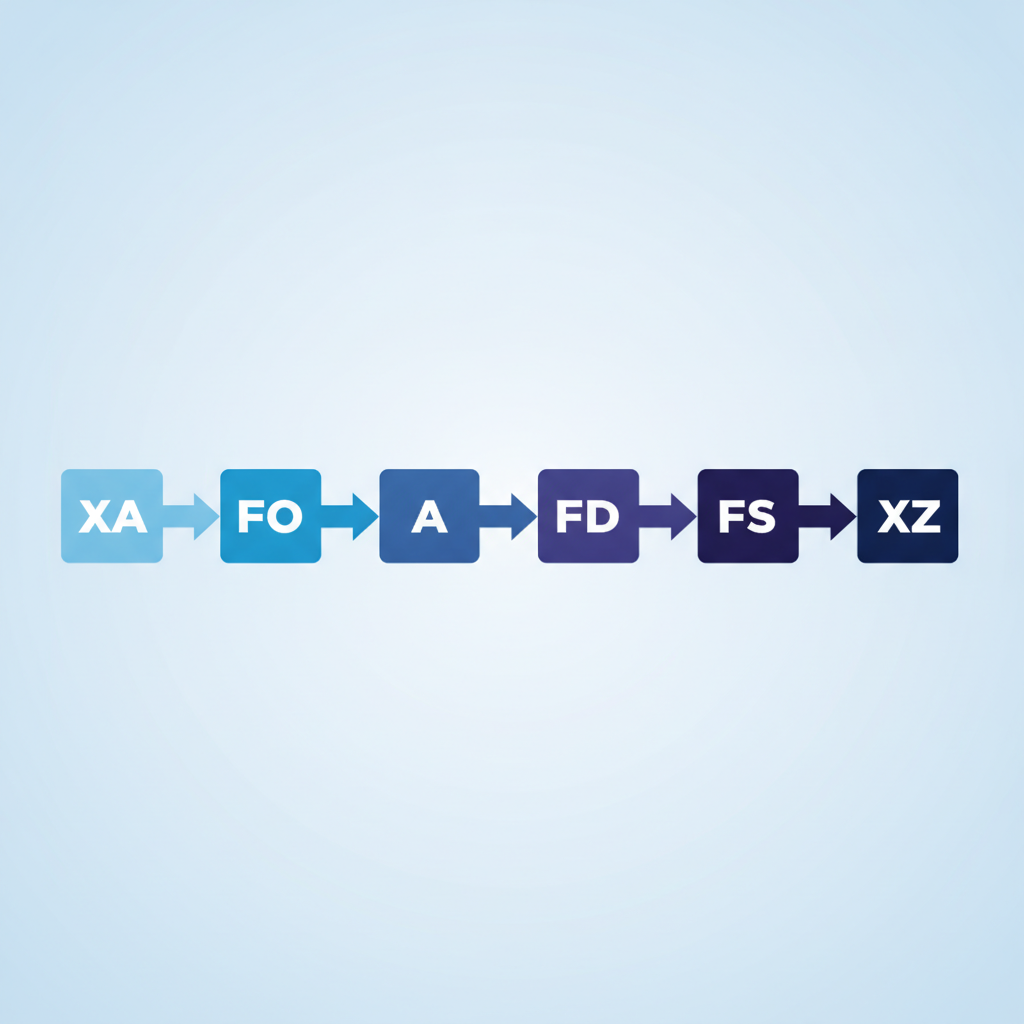
The ^A command in ZPL II selects the font, orientation, and character height and width for the text field that follows. It sits between a ^FO field origin and a ^FD field data command, and it controls how every printed character looks on a Zebra label. Label Toolkit lets you write, preview, and export ZPL with full ^A support directly in your browser without installing any software.
^A names a font (A through Z, plus numeric soft fonts) and sets its orientation, height, and width in dots.
The most commonly used variant is ^A0, Zebra's built-in scalable CG Triumvirate font, which scales cleanly from 10 dots to several hundred dots tall.
Font parameters apply only to the very next field; each new text field needs its own ^A (or it inherits the last ^A set via ^CF).
Choosing the wrong height in dots for your printer's DPI is the leading cause of text that looks too small or blurry on a finished label.
What is the ^A command and why does it matter?
ZPL II (Zebra Programming Language II) treats every element on a label as a discrete field. Text fields need to know which font to use before any data is rendered. The ^A command supplies that information. Without it, Zebra firmware falls back to the printer's configured default font, which is often tiny and hard to read at human scale.
^A is also where you control orientation, meaning whether text prints horizontally, rotated 90 degrees clockwise, upside-down, or rotated 90 degrees counter-clockwise. That matters for side panels, vertical spine labels, and any label where space is tight in one direction.
If you are new to ZPL structure, it helps to read the complete ZPL II guide first, because ^A only makes sense inside the broader label format sequence.
Full ^A syntax
The command takes four parameters, all optional except the font name itself:
N (normal), R (90 deg CW), I (inverted/180 deg), B (bottom-up/270 deg)
N
Character height
Second comma-separated value
10 to 32000 dots
Printer default or last ^CF value
Character width
Third comma-separated value
10 to 32000 dots
Proportional to height
The difference between ^A0 and ^AN
^A0 (caret A zero) calls the scalable CG Triumvirate typeface built into every modern Zebra printer. It scales smoothly at any dot size you specify. ^AN, ^AB, and similar letter-named variants call bitmap fonts stored in printer ROM. Bitmap fonts look sharp only at their native dot sizes (typically 15, 20, 28, or 35 dots tall depending on the font letter); scale them up and they appear blocky. For most shipping, retail, and warehouse labels, ^A0 is the right choice.
How dots translate to real-world text size
A dot in ZPL is the smallest mark a printhead can make. Its physical size depends on the printer's resolution:
Printer DPI (dots per inch)
Dot size (mm)
Dots needed for 10 mm tall text
Dots needed for 5 mm tall text
152 dpi (6 dpmm)
0.167 mm
60 dots
30 dots
203 dpi (8 dpmm)
0.125 mm
80 dots
40 dots
300 dpi (12 dpmm)
0.083 mm
120 dots
60 dots
600 dpi (24 dpmm)
0.042 mm
240 dots
120 dots
If you design a label at 203 dpi and set ^A0N,50,50 (50 dots tall), the printed character height is roughly 6.25 mm. Send that same ZPL to a 300 dpi printer without changing the dot count and the text shrinks to about 4.2 mm, because each dot is now physically smaller. Always confirm your target DPI before finalizing dot values. Zebra's own ZPL II Programming Guide (available at zebra.com) documents this in detail.
Where ^A fits in the label construction sequence
A minimal readable label follows this sequence every time. Understanding the sequence is what lets you build labels confidently rather than by trial and error.
^XA opens the label format and tells the printer a new label definition is starting. See the ^XA and ^XZ reference for details on label home and end commands.
^FO sets the X and Y origin (upper-left corner) of the upcoming field in dots from the label's home corner.
^A selects the font, orientation, height, and width for that field.
^FD supplies the actual text string to print.
^FS closes the field.
Steps 2 through 5 repeat for every additional text or barcode element.
^XZ closes the label format and triggers printing.
^XA
^FO50,50
^A0N,50,50
^FDShip To: Warehouse B^FS
^XZ
This prints the text "Ship To: Warehouse B" starting 50 dots from the left edge and 50 dots from the top, using CG Triumvirate at 50 dots tall (about 6 mm on a 203 dpi printer) in normal (horizontal) orientation.
The order number prints at 80 dots (about 10 mm at 203 dpi) for quick scanning at a glance. The priority line prints at 40 dots (5 mm), subordinate but still legible. Each text field has its own ^FO plus ^A pair.
Example 3: Rotated text for a side spine label
^XA
^FO20,400
^A0R,60,60
^FDAisle 7 - Bin C^FS
^XZ
The R orientation rotates the text 90 degrees clockwise. It reads from the bottom of the label upward, which is the standard convention for spine labels on shelf edges. The ^FO X,Y values position the rotated text's anchor point, not its visual top-left corner, so you may need to adjust X to prevent the text from printing off the edge.
Example 4: Setting a default font with ^CF
^XA
^CFA,30
^FO50,50
^FDDefault font applies here^FS
^FO50,100
^A0N,60,60
^FDOverride on this line only^FS
^XZ
^CF (Change Font) sets a label-wide default so you do not need to repeat ^A on every field. When a field omits ^A, it inherits the ^CF setting. When a field includes ^A, the ^CF default is ignored for that field only.
Common mistakes and how to avoid them
Why does my text print too small?
The most frequent cause is designing at one DPI and printing at another without recalculating dot values. A 50-dot height looks fine on a 152 dpi printer (8.3 mm) but tiny on a 300 dpi printer (4.2 mm). Check your printer's DPI setting in its configuration label (print one by holding the feed button at power-on on most Zebra models) and adjust your dot values accordingly.
Why does my text look jagged or blocky?
You are probably using a bitmap ROM font (^AA through ^AZ letter variants) at a non-native size. Switch to ^A0 (the scalable font) and the CG Triumvirate outline renderer will produce smooth edges at any size. The Zebra programming guide lists the native sizes for each ROM font if you specifically need one of them.
Why does the character width parameter change the look so drastically?
If height and width differ significantly, the font appears condensed or expanded. Setting ^A0N,80,40 produces tall narrow characters; ^A0N,40,80 produces short wide characters. For normal-proportioned text, keep height and width equal or omit the width parameter to let ZPL scale it proportionally to height.
What happens if I place ^A after ^FD?
Nothing useful. ^A must precede the ^FD it governs. If you write ^FD before ^A in the same field, the printer renders the data using whatever font was last active. Move ^A to before ^FD every time.
^A versus downloading soft fonts
Zebra printers can store downloaded TrueType or OpenType fonts in DRAM or flash memory. These are addressed with ^A followed by the font name you assigned during download (for example ^AFN,50,50 where F is the alias you gave the downloaded font). This is common in retail environments where brand typography must match on-shelf signage. The font download process uses the ^DT or host-copy commands covered in Zebra's font management documentation. For most warehouse and shipping use cases, the built-in CG Triumvirate via ^A0 is sufficient and avoids the overhead of managing font files on each printer.
The Zebra ZPL II Programming Guide documents every built-in font character set, including the extended character support available through the ^CI (Change International Font) command for accented characters and non-Latin scripts.
How Label Toolkit handles ^A in the designer
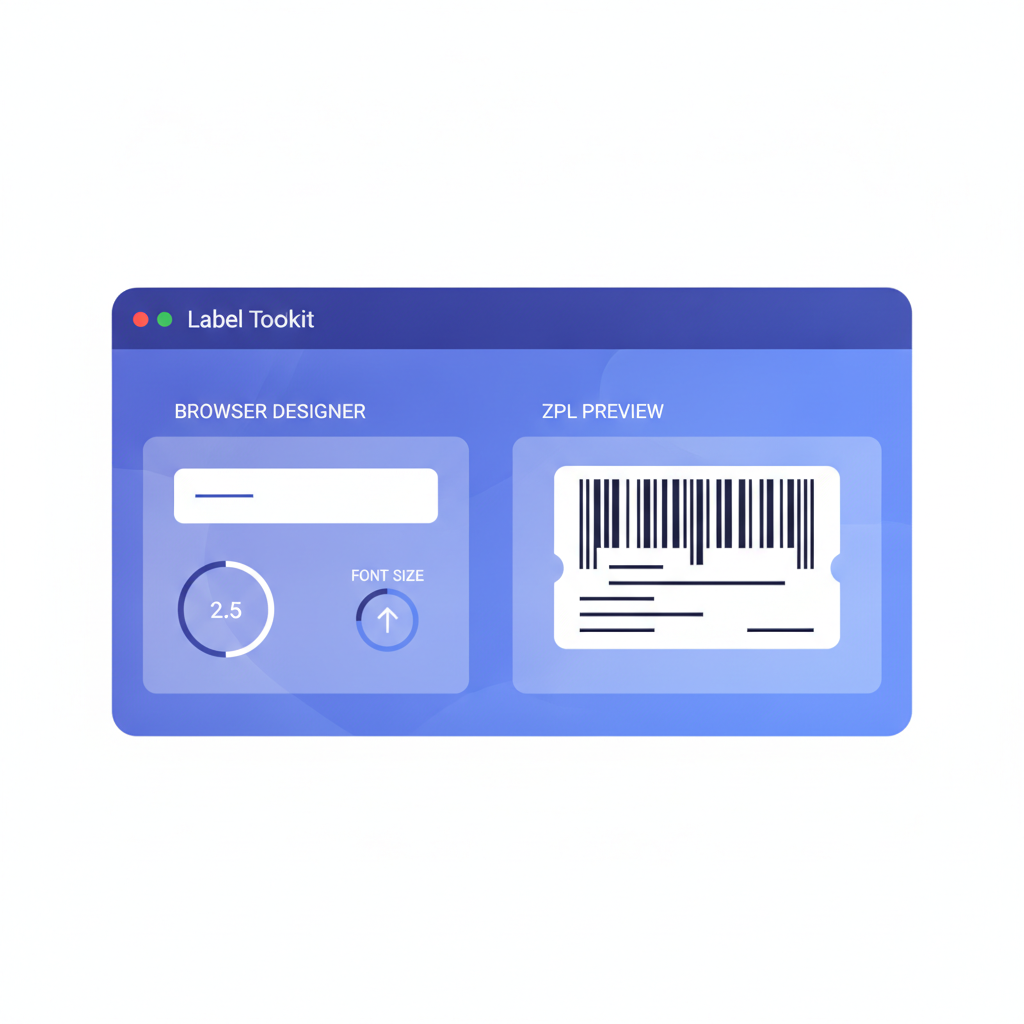
When you add a text element in Label Toolkit's browser-based designer, the font size field maps directly to the ^A height parameter in the exported ZPL. You pick a target DPI for your printer, set a size in millimeters, and the designer converts it to the correct dot count automatically. You can also switch to the raw ZPL editor and type ^A commands directly to override any value. The live preview updates without leaving the browser, which is far faster than uploading ZPL to a printer over USB to check each change.
^A0 (caret A zero) specifically selects Zebra's built-in scalable CG Triumvirate font, which renders cleanly at any dot size. ^A followed by a letter (^AB, ^AD, etc.) selects a bitmap ROM font stored at a fixed native resolution. For general use, ^A0 is preferred because it scales without pixelation.
How do I calculate the right dot height for readable text?
Multiply your desired text height in millimeters by the printer's dots-per-mm (dpmm) value: 8 dpmm for 203 dpi, 12 dpmm for 300 dpi, 24 dpmm for 600 dpi. For 8 mm tall text on a 300 dpi printer, the calculation is 8 times 12, which equals 96 dots. Use 96 as both height and width in ^A0N,96,96 for normally proportioned text.
Can I use ^A without specifying height and width?
Yes. If you omit height and width, the printer uses the values set by the most recent ^CF (Change Font Default) command in the label, or the printer's factory default if no ^CF has been issued. Always set an explicit ^CF at the top of your label format if you want consistent defaults across different printers.
Does ^A affect barcodes as well as text?
No. Barcodes use their own dedicated commands such as ^BC for Code 128 or ^BQ for QR codes. Those commands have their own size and orientation parameters. The ^A command applies only to text fields that follow it.
Why does my rotated text print in the wrong position?
When you rotate text with ^A0R or ^A0B, the ^FO X,Y coordinates still define the field's anchor dot, but which corner of the text block anchors there changes with orientation. For R (90 deg CW) rotation, the anchor is the bottom-left of the rotated text as it reads visually. Add the character width in dots to your X value to shift the text right, or subtract to move it left, until the position is correct.
Ready to design labels with proper font control and live ZPL preview? Create your free Label Toolkit account and start building production-ready Zebra labels in your browser today.