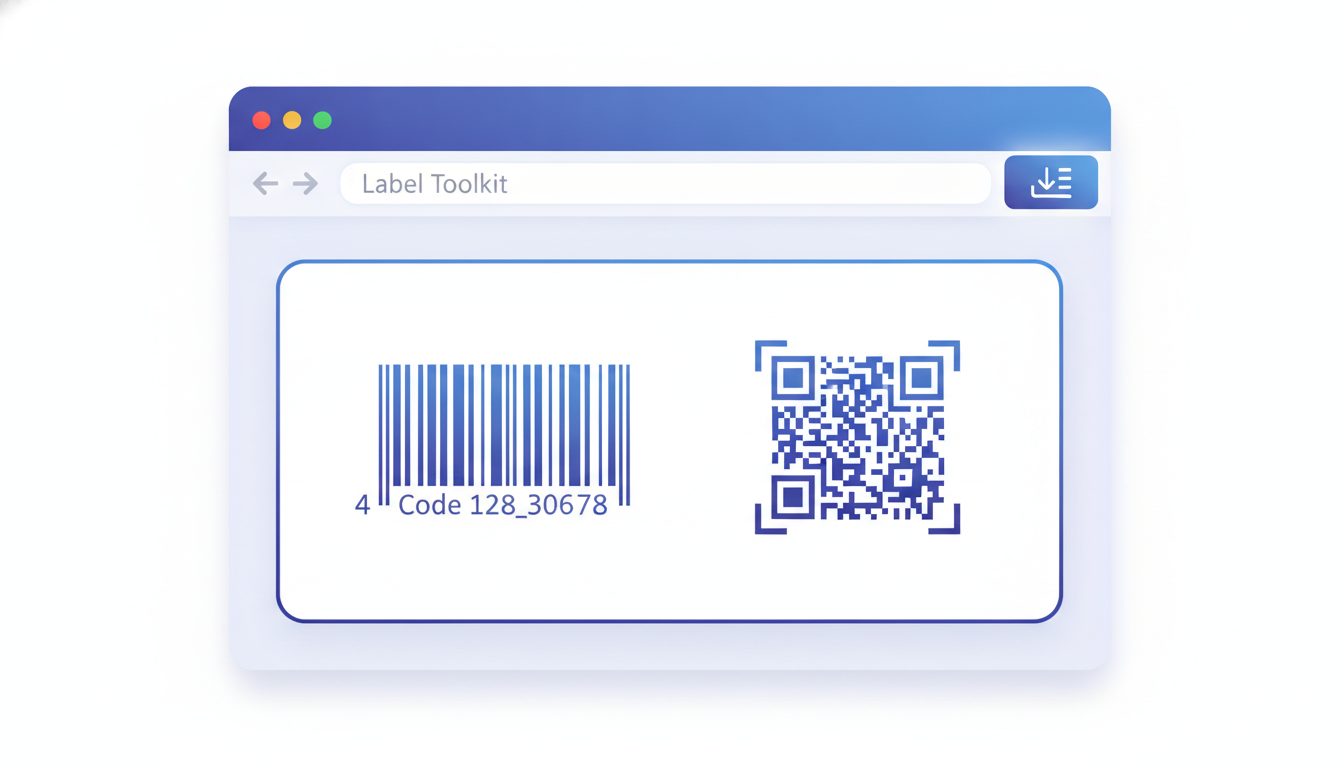
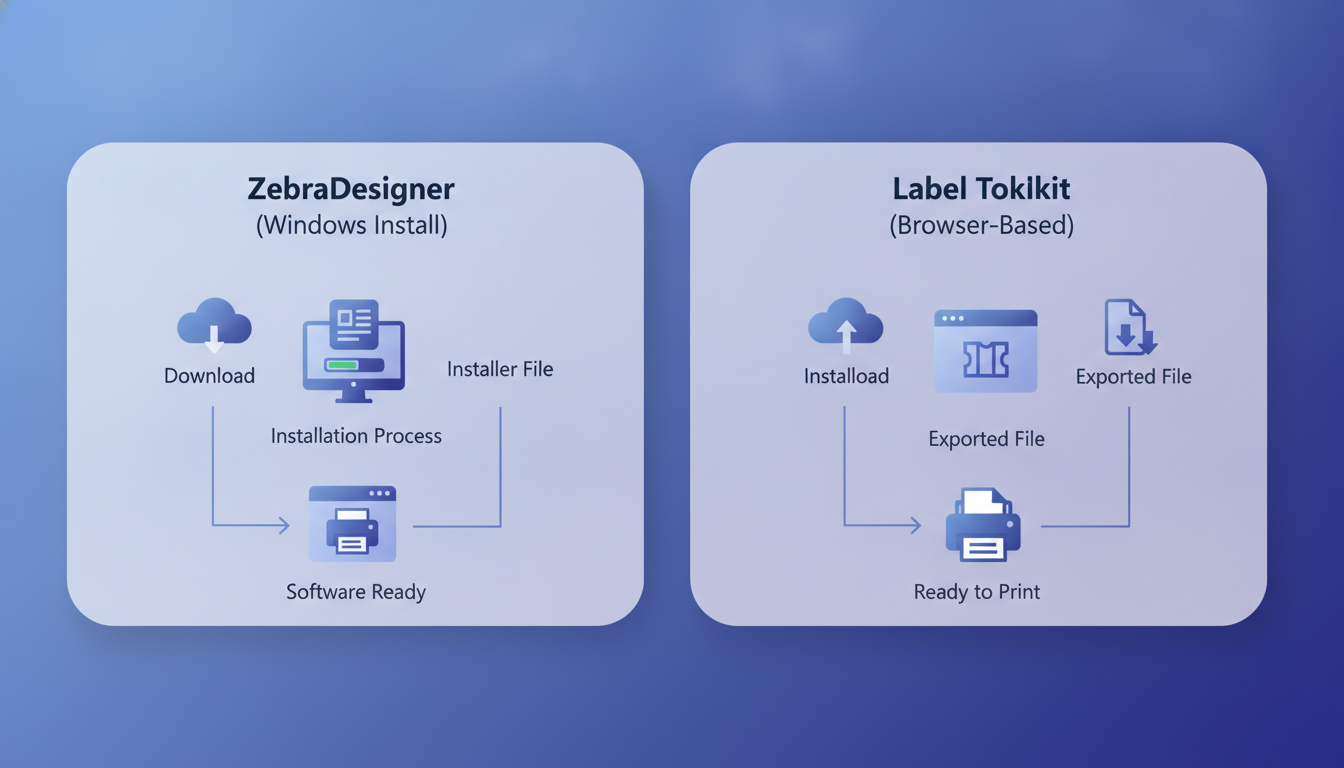
A ZebraDesigner alternative is any label design tool that produces the same output as Zebra Technologies' desktop software: precise label layouts, barcodes, and ZPL (Zebra Programming Language) code that drives a Zebra thermal printer. Label Toolkit is a free, browser-based option that requires no download, no license key, and no Windows-only installer. You design in the browser, export ZPL, and send the file straight to your printer.
No install required: Label Toolkit runs entirely in your browser on Windows, Mac, Linux, or Chromebook.
ZPL export is the bridge: The tool generates real ZPL II code your Zebra printer understands, keeping full hardware compatibility.
Free to start: Core design, barcode generation, and ZPL export are available at no cost, with no trial period countdown.
Data merge and batch printing: Upload a CSV or spreadsheet and print hundreds of unique labels without scripting.
What Is ZebraDesigner and Where Does It Fall Short?
ZebraDesigner is Zebra Technologies' own desktop label design suite. It comes in three tiers: ZebraDesigner Essentials (formerly called ZebraDesigner Free), ZebraDesigner Professional, and ZebraDesigner for Developers. Each requires a Windows PC, a local install, and in the case of the Pro and Developer editions, a paid license that runs several hundred dollars.
For many teams that frustration is real. Someone on a Mac, a Chromebook, or a shared warehouse computer cannot run the installer at all. A small shop that needs to design one shipping label template once a month has no appetite for license management. And the ZebraDesigner Essentials tier, while free, restricts database connectivity, scripting, and some barcode types behind the paywall.
ZebraDesigner Free vs Pro: what the tiers actually gate
Feature
ZebraDesigner Essentials (free)
ZebraDesigner Pro / Developer
Label Toolkit (free)
OS requirement
Windows only
Windows only
Any modern browser
Installation
Required (~150 MB)
Required
None
License cost
Free
Paid (varies by region)
Free to start
ZPL export
Yes (sends to printer)
Yes
Yes (download ZPL file)
Database / CSV merge
Limited
Full ODBC, SQL
CSV and spreadsheet upload
Barcode types
Core symbologies
Extended, GS1
Code 128, Code 39, QR, Data Matrix, EAN, UPC, GS1-128, ITF-14, and more
PDF export
Basic
Yes
True vector PDF
ZPL import (edit existing code)
No
Limited
Yes
Collaboration / shareable link
No
No
Yes
The table above reflects Zebra's published feature matrix as of 2025. Pricing and tier names do change, so check Zebra's official ZebraDesigner page for current details.
How Label Toolkit Works as a Drop-In Replacement
The fundamental job of any Zebra label design tool is to produce valid ZPL II code. Label Toolkit does that through a live canvas where every element you place is instantly translated into commands like ^XA, ^FO, ^FD, ^BC, and ^XZ. You never touch the ZPL manually unless you want to. When you are done, you download a .zpl text file and deliver it to your printer by any method you already use: raw TCP port 9100, a print queue, or a USB copy.
If you want to understand the ZPL commands underneath the design, the complete guide to ZPL II explains the language structure and how commands chain together inside a label format.
Step-by-step: designing a Zebra label in Label Toolkit
Set label size. Enter your media dimensions. A common Zebra shipping label is 4 in x 6 in (101.6 mm x 152.4 mm). You can also pick from common presets.
Set print resolution. Match your printer's DPI: 203 dpi (8 dots per mm) for most entry-level Zebra models, 300 dpi (12 dots per mm) for higher-detail labels. This affects barcode module widths in the ZPL output.
Add text fields. Click the text tool, place a field, and type your content. Font size maps to ZPL ^A scalable font heights in dots.
Add a barcode. Select your symbology (Code 128 is the most common for shipping), set the bar height (typically 25 to 32 mm for handheld scanner readability), and confirm a quiet zone of at least 10x the narrowest bar on each side.
Add a QR code if needed. Use error correction level M (15 percent recovery) for clean labels, or H (30 percent) if the label may get dirty or partially obscured.
Preview and adjust. The canvas reflects real dot positions. Zoom in to check that thin bars are not less than 2 dots wide at your chosen DPI, which is the minimum for reliable scanning.
Export ZPL. Click Export, choose ZPL, and download the file. The output uses standard ZPL II syntax compatible with all current Zebra printers (ZT, ZD, GK, GX, and LP series).
Send to printer. Copy the file to a USB-connected printer, or use a raw socket connection to port 9100 on a networked Zebra. The printer parses the ZPL and prints immediately.
ZPL Export: the Technical Bridge to Your Zebra Printer
ZPL II (Zebra Programming Language II) is the page description language Zebra printers use natively. A label definition is wrapped between ^XA (label start) and ^XZ (label end). Elements are placed with ^FO x,y (field origin in dots), content is written with ^FD...^FS (field data and field separator), and barcodes are declared with commands like ^BCo,h,y,y,N for Code 128 or ^BQN,2,4 for QR.
Here is a minimal Code 128 barcode label for a 203 dpi Zebra printer, sized 4 in x 2 in:
Breaking that down: ^FO50,30 places the barcode origin at 50 dots from the left and 30 dots from the top. At 203 dpi, one dot is approximately 0.125 mm (1 inch divided by 203). The bar height is 80 dots (about 10 mm). The human-readable text below uses ^A0N,28,28, which selects the scalable font at 28 dots wide and 28 dots tall. Label Toolkit generates this syntax for you, but understanding it helps you verify the output and troubleshoot edge cases.
What Label Toolkit Does That ZebraDesigner Does Not
ZPL import: edit code you already have
If you have an existing .zpl file, maybe exported from a legacy system or received from a supplier, Label Toolkit can import it and convert the commands back into canvas objects you can drag and edit. ZebraDesigner's Essentials tier has no equivalent import path. This is genuinely useful when you inherit label templates with no source file.
True vector PDF export
Beyond ZPL, Label Toolkit exports a true vector PDF where barcodes are rendered as vector paths, not rasterized bitmaps. This matters when you send artwork to a commercial printer or need to produce a compliance label at an exact size without pixel degradation. The vector PDF export guide explains crop marks, bleed settings, and how to verify the output is press-ready.
Data merge from spreadsheets
Upload a CSV with 500 rows, each containing a product name, SKU, and barcode number, and Label Toolkit generates 500 unique label variants ready to print or export. ZebraDesigner Essentials limits this capability; the full database integration only appears in the paid Pro tier, which additionally requires ODBC driver setup on the local machine.
Shareable links and version history
You can share a read-only link to any label design without the recipient needing an account. Version history lets you roll back to earlier saves. Neither feature exists in ZebraDesigner.
When ZebraDesigner Is Still the Right Choice
Honesty matters here. ZebraDesigner has strengths that a browser tool cannot fully replicate in every scenario.
Direct driver printing: ZebraDesigner can print directly through the Zebra Windows driver with precise media calibration dialogs built in. Label Toolkit's path to the printer goes through ZPL export, which adds one manual step. For a warehouse operator who prints 5,000 labels a day from a dedicated Windows PC, the direct driver workflow is faster.
RFID encoding: ZebraDesigner Pro supports RFID tag programming alongside print, using ZPL commands like ^RF. Label Toolkit does not currently handle RFID encoding.
Enterprise database connectivity: If your label data lives in an SQL Server or Oracle database and you need live queries at print time, ZebraDesigner Pro's ODBC connectivity is purpose-built for that. Label Toolkit handles flat CSV files and spreadsheets, which covers most SMB cases but not complex ERP integrations.
For most small businesses, e-commerce operators, and teams working across mixed operating systems, those gaps rarely surface. The install-free, license-free workflow wins by default.
Comparing the ZPL Output Quality
A question worth addressing directly: does the ZPL Label Toolkit generates work reliably on real Zebra printers?
ZPL II is a published, documented standard maintained by Zebra Technologies. Any conformant ZPL II generator produces output any Zebra printer can parse. The Zebra ZPL Programming Guide defines every command and its valid parameters. Label Toolkit targets that same specification, so the output is not proprietary or approximated. The practical test is simple: print a barcode label, scan it with a handheld scanner, and verify the decoded data matches the input. Quiet zones, bar widths at the correct DPI, and check digit encoding all affect scan reliability more than which tool generated the ZPL.
Label Toolkit is not the only option. A fair comparison includes the broader field.
Tool
Browser-based
ZPL export
Free tier
Data merge
Best for
Label Toolkit
Yes
Yes
Yes
CSV / spreadsheet
SMBs, mixed OS teams, no-install preference
BarTender (Seagull Scientific)
No (desktop)
Yes
No (trial only)
Full database
Enterprise, RFID, complex ERP
NiceLabel
Cloud option
Yes
No
Full database
Enterprise compliance printing
Labelary
Yes
Input only (viewer)
Yes
No
Developers previewing existing ZPL
DYMO Connect
No (desktop)
No
Yes (with DYMO printer)
Limited
DYMO printer users only
Labelary is worth a separate note. It is a ZPL preview and rendering tool, useful for developers debugging existing ZPL code, but it is not a label designer. You cannot build a label from scratch in Labelary. Label Toolkit covers both roles: designing from scratch and importing existing ZPL to edit.
Practical Tips for Switching from ZebraDesigner
Reuse your existing label dimensions
Open your current ZebraDesigner template, note the label width, height, and print resolution (dpi). Enter those exact values when you create a new label in Label Toolkit. The canvas will match the physical media size.
Import your existing ZPL files
If you have saved ZPL from ZebraDesigner (or any other source), use the Label Toolkit ZPL import feature to pull it onto the canvas as editable objects. This is the fastest migration path when you have dozens of existing templates.
Match your printer's DPI setting
A 203 dpi Zebra ZT230 uses 8 dots per mm. A 300 dpi Zebra ZT410 uses 12 dots per mm. If you design at 203 dpi and print on a 300 dpi printer without adjusting, every element will print at about two-thirds of its intended size. Set the DPI in Label Toolkit to match your hardware before placing any element.
Test with a small batch before bulk printing
Print one or two labels, measure them physically with a ruler, and scan every barcode with a handheld scanner before committing a 500-label run. This is good practice regardless of which design tool you use.
Frequently asked questions
Is Label Toolkit completely free, or is there a catch?
Core label design, barcode generation, and ZPL export are free with no time limit. Some advanced collaboration and storage features may require an account, but there is no license key, no activation call home, and no Windows-only restriction.
Can I print directly to my Zebra printer from Label Toolkit, or do I have to export ZPL first?
Browser security rules prevent direct raw socket connections to local printers from a web page, so you export the ZPL file and send it to the printer yourself. Common methods include copying the file to a USB-connected Zebra, using a small raw print utility, or opening a TCP connection to port 9100 on a networked printer. This is one extra step compared to ZebraDesigner's driver integration, but it works on any operating system.
Will ZPL from Label Toolkit work on older Zebra printers like the LP 2844 or GK420d?
Yes. ZPL II is backward compatible across Zebra's product line going back decades. The LP 2844 and GK420d both support standard ZPL II commands including ^XA, ^FO, ^BC, and ^BQ. The only variable is DPI: the LP 2844 prints at 203 dpi and the GK420d is available in both 203 dpi and 300 dpi variants, so match your canvas resolution to your specific unit.
Does Label Toolkit support GS1-128 and ITF-14 barcodes needed for retail compliance?
Yes, both symbologies are available in the barcode tool. GS1-128 requires correct Application Identifier formatting (for example, AI 00 for SSCC, AI 01 for GTIN), and Label Toolkit lets you configure those fields directly. Check the relevant compliance specification from GS1 for your trading partner's exact requirements before finalizing the label.
What is the difference between this and the Labelary alternative article on Label Toolkit's blog?
The Labelary alternative post covers using Label Toolkit as a replacement for Labelary's ZPL viewer and preview tool, which is a developer-focused use case. This article focuses on replacing ZebraDesigner as a full label design application, meaning starting from scratch, placing elements visually, and exporting ZPL as the final output rather than as input.
Ready to design your first Zebra label without installing anything? Create a free Label Toolkit account and open a label in under a minute, on any device, with ZPL export ready from day one.