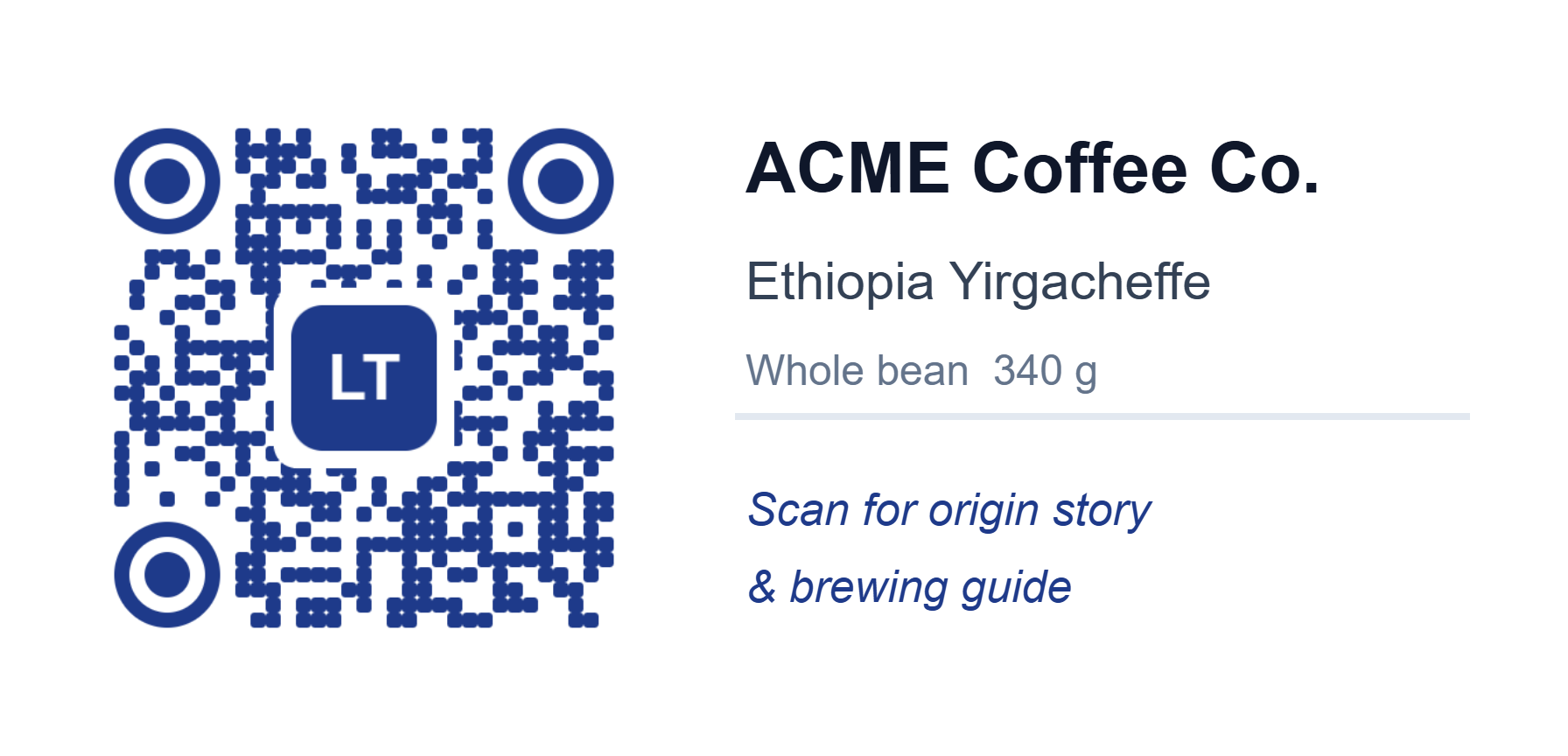
A QR code with a logo in the middle, your brand color, and softly rounded modules looks far more inviting than a plain black grid, and it still scans perfectly when you build it correctly. The trick is error correction: a QR code carries enough redundant data to survive a logo covering the center, as long as you plan for it. Label Toolkit generates styled, scannable QR codes right in your browser, for free, and drops them straight onto a label next to your text and barcodes.
Style controls: module shape (square, rounded or dots), finder-eye shape, foreground and background color, quiet zone, and a center logo.
A logo covers part of the code, so raise the error correction to level H (30% recovery) whenever you add one.
The QR value can be a plain URL, or a Wi-Fi network, contact card, email, SMS, phone number or map location, built from a menu instead of memorized syntax.
Values can come from a spreadsheet, so a single styled QR design can print a different code on every label.
A styled QR code on a real label: rounded modules, circular finder eyes, a brand color and a center logo, built and previewed in the Label Toolkit editor.
What makes a QR code "styled"?
Every QR code is a grid of black and white squares called modules, plus three large squares in the corners called finder patterns (the "eyes") that a scanner uses to lock on. A plain generator draws all of them as hard black squares on white. Styling changes how those parts look without changing the data underneath:
Module shape. Keep the classic square, soften every module into a rounded square, or render them as separated dots for a lighter, modern feel.
Finder eyes. Style the three corner eyes on their own, as squares, rounded squares or circles, so the code reads as designed rather than generic.
Color. Set a foreground and background color. The one rule that matters is contrast (see below).
Center logo. Drop a PNG or SVG into the middle. A padded, rounded backing plate is added automatically so the logo sits cleanly on the code.
Quiet zone. The empty margin around the code. Scanners need it; you can widen it, never remove it.
Will a QR code with a logo still scan?
Yes, if you leave the scanner enough of the code to read. QR codes use Reed-Solomon error correction, which stores redundant copies of the data. If part of the code is damaged, dirty, or covered by a logo, the scanner reconstructs the missing modules from that redundancy. There are four levels, and you trade data capacity for resilience:
Level
Recovery
Best for
L
~7%
Maximum data, clean print, no logo
M
~15%
The everyday default
Q
~25%
Small labels or busy backgrounds
H
~30%
Any code with a center logo
Two more rules keep a styled code readable:
Keep contrast high. A dark foreground on a light background scans best. Avoid a light code on a dark background, and never invert the two.
Keep the logo modest. Roughly a quarter of the code's width is a safe ceiling. Bigger, and even level H struggles.
Pick a content type and fill in the value (a URL, Wi-Fi network, contact card, and so on).
Set the error correction to H if you plan to add a logo.
Choose your module shape and finder-eye shape, then set the foreground color to your brand color.
Upload a logo and adjust its size until it sits comfortably in the center.
Position the QR on the label next to your text, then export.
Build the QR content from a menu, not from memory
A QR code is just text, but the text has to be formatted exactly right for a phone to do something useful with it. Instead of memorizing that a Wi-Fi code starts with WIFI:T:WPA;S:..., Label Toolkit builds it from fields. Choose the content type and fill in the blanks:
URL for a website or landing page.
Wi-Fi for a network name, password and security type, so a guest joins by scanning.
Contact card (vCard) for a name, phone, email and company that saves straight to Contacts.
Email, SMS and phone to start a message or call with the text pre-filled.
Location for map coordinates.
Print a different QR on every label
Because a QR value is just text, it can be pulled from a column in a spreadsheet. Load a CSV or Excel file, point the QR value at a column with a placeholder, and one styled design prints a unique code on every row, each one carrying its own URL, serial number or asset tag while keeping the same colors, logo and shape. This is how you produce a batch of branded asset tags or product labels in one export instead of designing them one at a time.
Export without losing quality
A styled QR code is only as good as the print. Label Toolkit exports labels as true vector PDFs, so the QR modules stay razor sharp at any size instead of turning into a fuzzy screenshot, and it can generate ZPL for Zebra thermal printers. If you are choosing between a QR code and a linear barcode for a given job, our guide to barcode types walks through the trade-offs.
Try it
Styled, scannable QR codes are free and need no signup. Open the Label Toolkit editor, add a QR code, and give it your color and logo. Then place it on a label, merge in your data, and export a crisp PDF or ZPL ready to print.