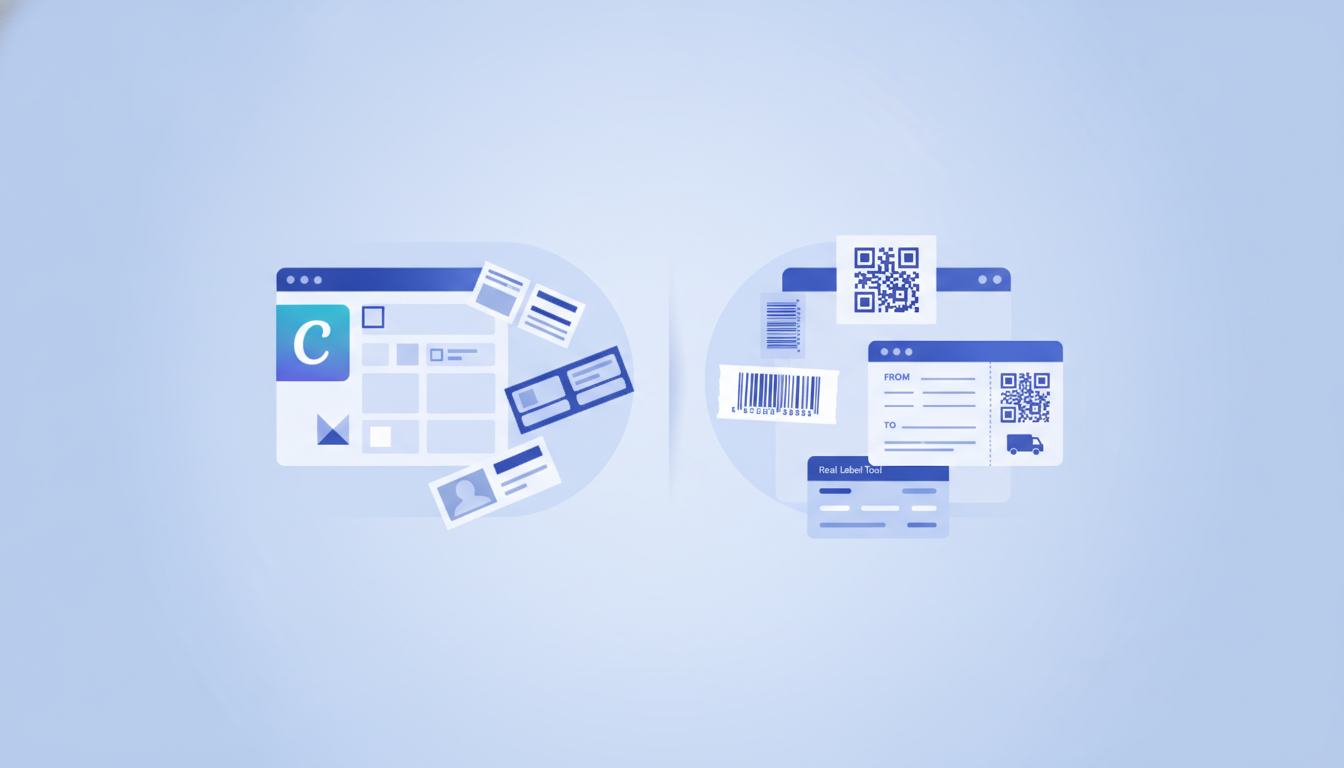
Canva works well for designing decorative or photo-heavy labels where visual impact matters most, but it falls short the moment you need a scannable barcode, variable data printed from a spreadsheet, an exact-size PDF with bleed marks, or output for a thermal or Zebra printer. Label Toolkit is a free, browser-based label designer built specifically for those production requirements, covering barcodes, data merge, ZPL export, and precise PDF printing with no software to install.
- Canva has no native barcode or QR code generator tied to label dimensions; any barcode you add is a static image with no size or quiet-zone guarantee.
- Canva cannot merge rows from a spreadsheet into individual labels, which makes batch printing impractical for shipping, retail, or inventory use.
- Canva does not export ZPL or EPL, so it cannot drive a Zebra, Honeywell, or other direct-thermal printer.
- Label Toolkit handles all of those gaps for free, in the browser, with no account required to start.
What Canva actually does well for labels
Being honest matters here. Canva is genuinely excellent at several things that come up in label design:
- Photo labels: If your product label needs a full-bleed lifestyle photo, Canva's image library and masking tools are hard to beat.
- Brand asset management: Canva Brand Kit stores your logo, fonts, and color palette in one place, so every label a team member designs stays on-brand automatically.
- Typography: Canva's font library (1,000-plus fonts) and text-effect tools are richer than most dedicated label software.
- Approvals and collaboration: Canva's comment and share workflow suits agencies designing label artwork for clients who want to annotate before print.
- Decorative and craft labels: Jam jar labels, wine bottle labels, hand-made product packaging where the goal is visual appeal and you print on a home inkjet or send to a print shop as a one-off PDF.
None of those use cases require a barcode engine, a data merge pipeline, or a thermal driver. For them, Canva is the right choice.
Where Canva breaks down in label production
No real barcode generation
Canva does not generate barcodes natively. Users either paste a screenshot from a third-party barcode site or add an "app" integration that drops a static PNG into the canvas. Neither approach guarantees the quiet zone (the mandatory clear space around a barcode, typically 10 times the narrowest bar width for Code 128) is preserved when you resize the design. A barcode that looks fine on screen can fail a scan when the image is stretched or compressed even a few pixels. For more on why quiet zones matter, see our guide on quiet zones and barcode margins.
No data merge or variable printing
If you need to print 500 labels where each one has a different SKU, serial number, or shipping address, Canva offers no built-in way to do that. The workaround people try, manually editing a design 500 times, is not a workflow. Tools built for label production connect directly to a CSV or spreadsheet and generate one label per row automatically.
No thermal or ZPL output
Thermal label printers (Zebra ZT410, ZD421, GK420d, and similar models) speak ZPL (Zebra Programming Language) or EPL. Canva exports PNG, PDF, SVG, and MP4. It has no ZPL export, no direct thermal driver, and no concept of print density measured in dots per millimetre (dpmm). A 4 x 6 inch shipping label that looks fine as a Canva PDF will often print with sizing errors on a 203 dpi (8 dpmm) or 300 dpi (12 dpmm) thermal printer because the PDF is not set to the exact media dimensions the printer expects.
Inexact sizing and no bleed control
Canva's canvas sizes are defined in pixels, not physical units anchored to a print resolution. When you type "4 x 6 in" and export to PDF, the result is usually correct, but Canva does not let you set a specific bleed (the extra 1 to 3 mm of printable area beyond the cut line), define crop marks, or guarantee the PDF page size matches the label stock exactly. For sheet labels, Avery template dimensions such as the 1 x 2.625 inch cells on a 5160 sheet must be pixel-perfect or labels land off-center after cutting.
Head-to-head comparison: Canva, Label Toolkit, Avery Design and Print, Maestro Label Designer
| Feature | Canva | Label Toolkit | Avery Design and Print | Maestro Label Designer |
|---|---|---|---|---|
| Price to start | Free (Pro from $15/mo) | Free | Free | Free tier; paid from $9/mo |
| Native barcode generation | No (static image only) | Yes (Code 128, QR, UPC, EAN, Data Matrix, ITF-14, and more) | Limited (Code 39, QR) | Yes (most common symbologies) |
| Data merge from CSV/spreadsheet | No | Yes | No | Yes (paid tier) |
| Thermal/ZPL export | No | Yes (ZPL II) | No | No |
| Exact-size PDF with bleed and crop marks | Partial (no bleed control) | Yes (true vector PDF) | Yes (Avery sheets only) | Yes |
| Avery sheet templates | Many community templates (not official) | Yes (e.g., Avery 5160) | Yes (full official library) | Yes |
| No install required | Yes | Yes | Yes | Yes |
| Graphic design and photo editing | Excellent | Good (shapes, images, text) | Basic | Basic |
| Brand kit / asset library | Yes (Pro) | Saved labels and templates | No | No |
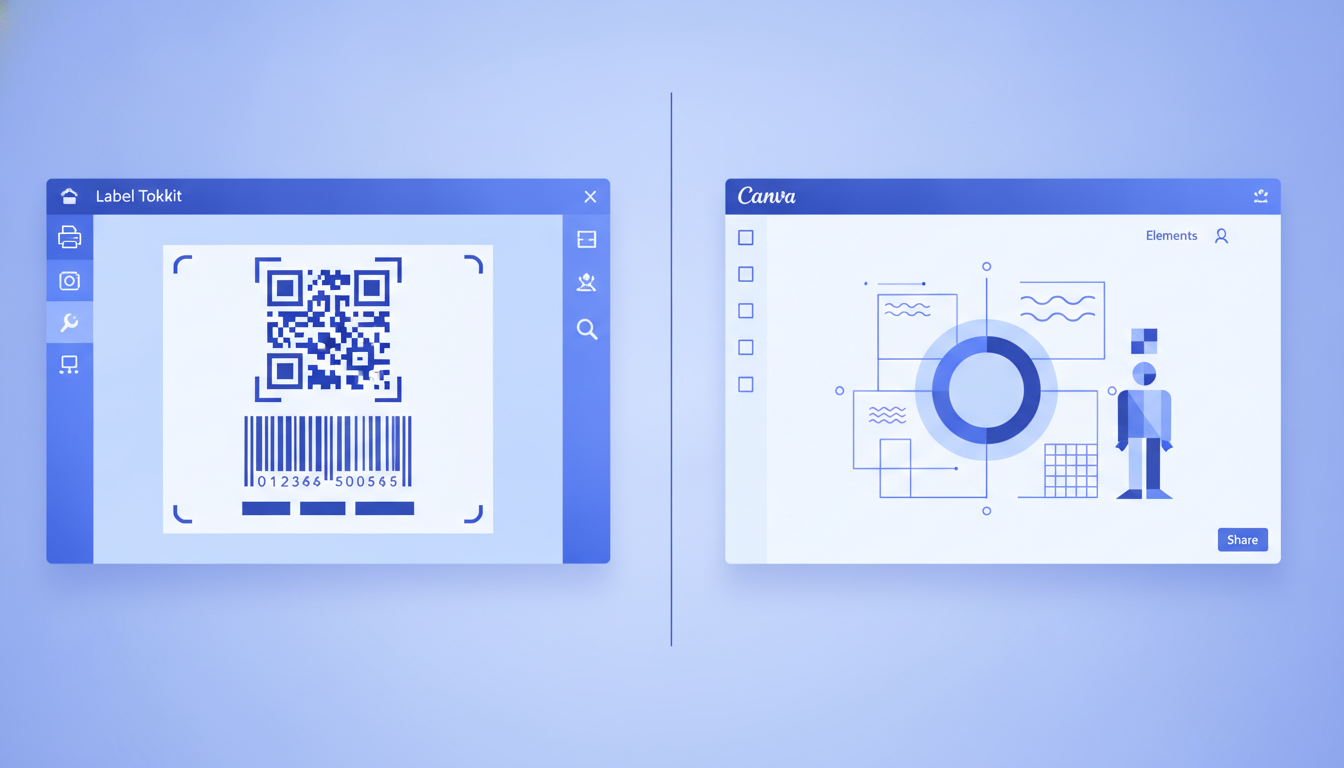
Avery Design and Print wins for anyone printing on Avery sheet stock and needing the officially licensed cell dimensions. Canva wins on pure visual design. Label Toolkit wins on the combination of barcodes, data merge, thermal output, and exact PDF sizing, all for free.
How Label Toolkit handles what Canva cannot
Barcodes with correct quiet zones
Label Toolkit generates barcodes as vector objects on the canvas, not raster images. You pick the symbology (Code 128 for shipping and logistics, Code 39 for simple internal tracking, QR for URLs or product data, ITF-14 for case/carton, and so on), type the value, and the barcode renders at the correct bar-to-space ratio with the minimum quiet zone built in. Resize the label and the barcode resizes proportionally, keeping all ratios intact. The complete barcode symbology guide explains which format suits each use case.
Data merge from a spreadsheet
Upload a CSV or connect a Google Sheet, map columns to fields on the label (product name, price, SKU, barcode value, etc.), and Label Toolkit generates one label per row. A batch of 1,000 shipping labels takes seconds, not hours. Each label can carry a unique barcode value drawn from the spreadsheet column, so serial numbers and tracking codes print correctly without manual editing.