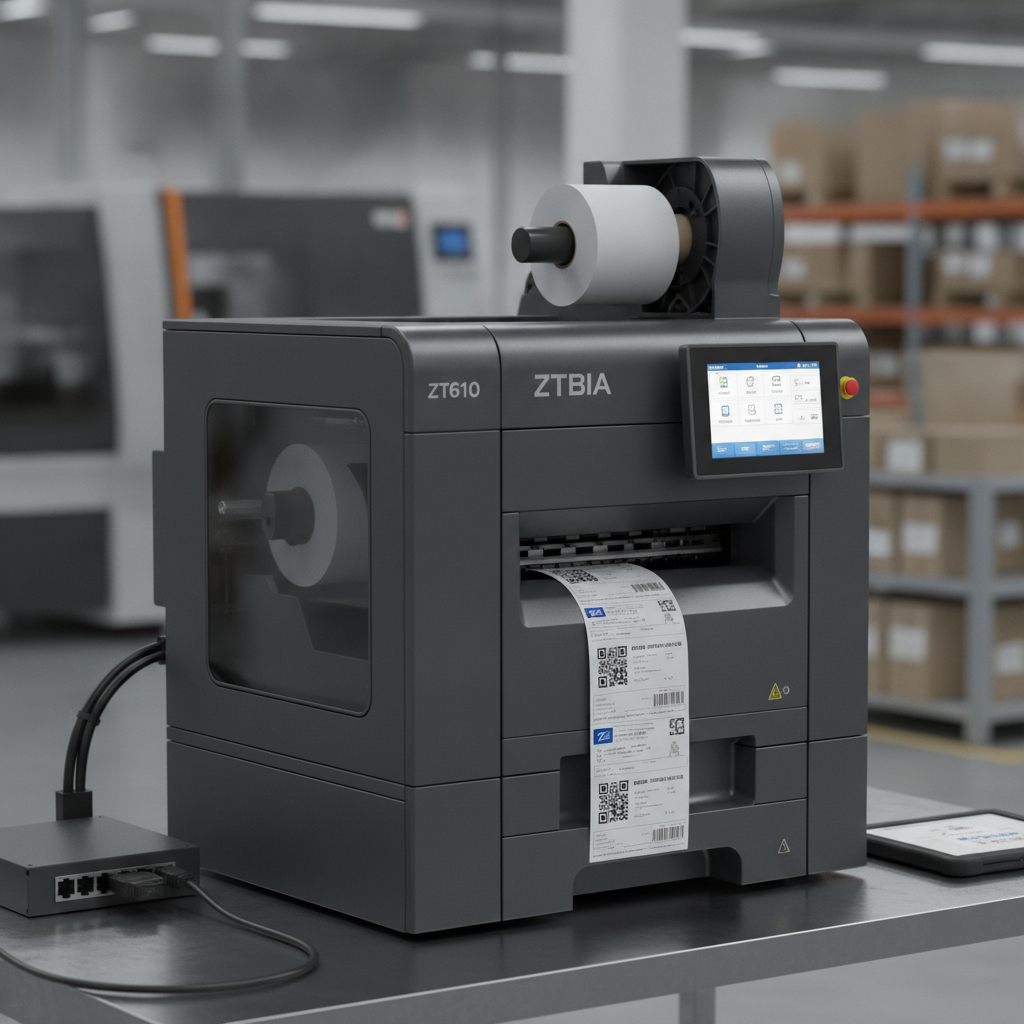
ZPL (Zebra Programming Language) and EPL (Eltron Programming Language) are the two native command languages used by Zebra thermal label printers. ZPL is the current standard, supported on virtually every modern Zebra device, and is the right choice for new deployments. EPL (usually EPL2) is a legacy language found on older Eltron-era printers from the 1990s and early 2000s; it still works on those machines but is not supported on Zebra's current printer lineup. Label Toolkit generates and exports ZPL, letting you design labels in a browser without installing anything.
- ZPL is the modern, actively developed standard; EPL2 is legacy and limited to older Eltron-era hardware.
- ZPL uses caret-based commands (
^XA,^FO,^BC, etc.); EPL2 uses short two-letter ASCII commands (N,A,B,P). - ZPL supports scalable fonts, rich 2D barcodes, variable data, and networked printing; EPL2 supports only a fixed bitmap font set and basic 1D barcodes.
- If you are buying or spec-ing a printer today, choose ZPL. If you own an older LP or TLP series Eltron printer, EPL2 may be your only option until hardware is refreshed.
What is EPL2 and where did it come from?
EPL stands for Eltron Programming Language. Eltron Technology was a label printer manufacturer that Zebra Technologies acquired in 1998. EPL2 (the second version) became the dominant language on Eltron's LP 2842, LP 2844, and TLP 2844 printers, which were extremely popular for small-parcel shipping labels throughout the late 1990s and 2000s. You will still find these printers in warehouses and small shipping operations today because they are physically durable.
EPL2 commands are compact ASCII strings. A label starts with the letter N (clear buffer), positions text with A commands, adds barcodes with B, and prints with P. A minimal EPL2 label looks like this:
N
A50,50,0,3,1,1,N,"Hello World"
B50,100,0,1,2,2,50,B,"12345678"
P1
Each parameter is positional and separated by commas. The format is terse, which suited the low-memory embedded controllers of 1990s hardware. The trade-off is that EPL2 is hard to read, hard to debug, and almost impossible to extend for complex layouts.
What is ZPL and why did it replace EPL?
ZPL was developed by Zebra Technologies independently of the Eltron acquisition. After the merger, Zebra standardized its entire product line around ZPL II (the second and current iteration), which added scalable fonts, graphics download, and richer barcode support. Every Zebra printer released after roughly 2003 speaks ZPL natively. Many of them can also emulate EPL2 through a firmware setting, but that emulation layer adds overhead and does not expose full printer capability.
ZPL uses caret (^) and tilde (~) prefixed commands. A label is wrapped in ^XA (start) and ^XZ (end). Fields are placed with ^FO (Field Origin), typed with ^FD (Field Data) and closed with ^FS (Field Separator). A comparable ZPL label to the EPL2 example above looks like this:
^XA
^FO50,50^A0N,30,30^FDHello World^FS
^FO50,120^BCN,50,Y,N,N^FD12345678^FS
^XZ
The syntax is more verbose, but each element is named and self-describing. ^A0N,30,30 means: use font zero (the built-in scalable font), orientation Normal, height 30 dots, width 30 dots. Debugging that six months later is far easier than decoding positional EPL2 parameters. You can read the full ZPL command reference in Label Toolkit's ZPL Commands hub for Zebra label printing.
ZPL vs EPL2: a structured comparison
| Feature | ZPL II | EPL2 |
|---|---|---|
| Command prefix | Caret (^) and tilde (~) | Single or two-letter ASCII |
| Label start / end | ^XA ... ^XZ | N (clear) ... P (print) |
| Coordinate system | Dot-based (origin top-left by default); adjustable with ^LH | Dot-based (fixed top-left origin) |
| Fonts | Scalable fonts via ^A; downloadable TrueType via ^CW | 8 fixed bitmap fonts (A through H); no scalable fonts |
| 1D barcodes | Code 128 (^BC), Code 39 (^B3), ITF-14 (^B2), UPC-A (^BU), EAN-13 (^BE), and many more | Code 128, Code 39, UPC, EAN, Interleaved 2 of 5 (I2of5); no GS1-128 FNC1 support natively |
| 2D barcodes | QR Code (^BQ), Data Matrix (^BX), PDF417 (^B7), MaxiCode (^BD) | PDF417 only (on select models); no QR, no Data Matrix |
| Graphics | Download via ^GF (graphic field) or store to flash with ^IL | Basic line and box drawing (LO, LE); no downloadable graphics |
| Variable data / merge | Full field substitution; host-supplied variables via ^FN and ^FD | Manual string replacement only; no named variables |
| Printer memory management | Store label formats to DRAM, Flash, or memory card; recall by name | No persistent format storage |
| Network printing | Full support over TCP/IP, USB, Bluetooth, Wi-Fi with status feedback | Serial and parallel only on original hardware |
| Active Zebra support | Yes, all current printers (ZD220, ZD420, ZD620, ZT series, etc.) | No; only via EPL emulation on select models |
| Tooling and ecosystem | ZebraDesigner, Label Toolkit, Labelary API, ZBI scripting | Minimal; legacy third-party only |
How do the coordinate systems actually differ in practice?
Both languages measure position in printer dots, which depend on print density. A 203 DPI (dots per inch) printer has roughly 8 dots per millimeter. A 300 DPI printer has about 11.8 dots per mm. So a ^FO100,200 command on a 203 DPI printer places a field 100 dots (12.4 mm) from the left edge and 200 dots (24.8 mm) from the top.
EPL2 uses the same dot grid, but the coordinate order for its A (text) command is A x,y,rotation,font,h_mult,v_mult,reverse,"data". Rotation is expressed as 0, 1, 2, or 3 (for 0°, 90°, 180°, 270°). ZPL uses ^FO x,y then a separate rotation parameter inside the font or barcode command (N for normal, R for 90°, I for inverted, B for bottom-up). The ZPL approach separates position from orientation, which is cleaner when you are templating labels programmatically.
One practical ZPL gotcha: the ^PW command sets label width in dots. If you forget it and your label is wider than the default, the printer will silently clip the right edge. EPL2 has no equivalent width declaration; it just prints whatever fits on the installed media.
Font handling: the biggest day-to-day difference
EPL2's fixed bitmap fonts (A through H) range from roughly 5 x 7 pixels (font A) to around 24 x 24 pixels (font H) before hardware magnification. The h_mult and v_mult multipliers (1 to 9) scale them up by pixel doubling, which looks blocky at large sizes. On a 203 DPI label this is usually acceptable for a single-line part number, but it falls apart on a compliance label where you need a 14pt font and a 7pt font side by side with precise sizing.
ZPL's ^A command targets named or numbered fonts. ^A0 is the built-in scalable CG Triumvirate font (a monospaced sans-serif). You specify height and width independently in dots, so ^A0N,56,56 gives you a 56-dot-tall (roughly 7mm on 203 DPI) text field that scales smoothly. Zebra also allows TrueType font download via ^CW plus the ~DY download command, giving you full typographic control that EPL2 simply cannot match.
Barcode support: where EPL2 falls furthest behind
For basic Code 128 shipping labels, EPL2 is adequate. But the modern label ecosystem has moved well past that. GS1-128 labels (used for SSCC carton labels and GS1 application identifiers) require an FNC1 character at the start of the barcode data. ZPL's ^BC command handles this automatically when you set the mode parameter to N and include the correct AI prefix. EPL2's Code 128 implementation does not insert FNC1 reliably across all firmware versions.