← Back to Blog
ZPL & Zebra Printing

ZPL Command Reference: ^FD and ^FS (Field Data and Field Separator)

Olivia MorganJuly 18, 2026789 views

^FD (Field Data) and ^FS (Field Separator) are the ZPL II commands that supply the actual content of a field and then close it. Every text string, barcode value, or graphic data block on a Zebra label lives between a ^FD and a ^FS. Label Toolkit generates these commands automatically when you design labels in the browser, but understanding the raw syntax lets you debug output, write API payloads, and spot encoding issues instantly.

  • ^FD marks the start of field data and accepts any printable ASCII string, plus escape sequences for special characters.
  • ^FS closes the field with no parameters; the printer ignores everything after ^FS until the next field command opens.
  • The pair always follows a ^FO (Field Origin) and a font or barcode command, forming the three-command sequence that describes one complete element on the label.
  • Forgetting ^FS is the single most common cause of garbled or merged fields in hand-written ZPL.

What exactly do ^FD and ^FS do?

ZPL II, the programming language spoken by every modern Zebra thermal printer, treats a label as a collection of discrete fields. A field has an origin (position), a renderer (font, barcode type, or graphic), and data (content). ^FD opens the data portion. Everything between ^FD and ^FS is the string the printer hands off to whatever renderer was declared earlier in the field. ^FS signals the end of the data and commits the field to the label image buffer.

Because ZPL is a streaming language, the printer reads commands in order. If you omit ^FS, the parser keeps accumulating characters as field data until it hits another recognized caret command, which corrupts the next field or silently swallows it entirely. Real printers handle this differently from ZPL emulators, so always close every field.

Syntax reference

^FD syntax

The formal syntax from the Zebra ZPL Programming Guide is:

^FD<data>

There is no separator between ^FD and the data string. The data starts immediately after the second letter D. Valid characters are printable ASCII (0x20 to 0x7E) plus a handful of special escape sequences shown in the table below. The maximum field length depends on the printer model and firmware, but 3,072 bytes is a safe working limit for most ZD and ZT series printers.

^FS syntax

^FS

No parameters. No data follows. The command is exactly three characters. Some authors write it as ^FS on its own line for readability, and others append it immediately after the data string. Both are valid; the printer does not care about whitespace between ZPL commands unless that whitespace is inside a ^FD block, in which case spaces become part of the printed string.

Special characters inside ^FD

Character neededEscape sequence in ^FDNotes
Caret (^)^5E or _5EHex code for ASCII 0x5E; avoids triggering a ZPL command
Tilde (~)~7E or _7EAvoids ZPL tilde-command prefix
FNC1 (GS1 separator)~1ERequired in GS1-128 and GS1 DataMatrix fields
Non-printable ASCII_XX (underscore + hex)Underscore is the default sub-delimiter; change with ^CC and ^CD

The escape prefix character is configurable with ^CT (Change Tilde) and ^CC (Change Caret). If your data naturally contains underscores, change the sub-delimiter with ^CD to avoid accidental substitution.

The three-command field trio: ^FO, font or barcode, ^FD, ^FS

No field exists in isolation. The printer needs to know where to draw the field before it knows what to draw. The canonical sequence is:

  1. ^FO sets the X and Y origin of the field in dots from the label's top-left corner. (See the dedicated ^FO field origin command reference for full positioning details.)
  2. A font command (^A) or barcode command (^BC, ^BQ, etc.) tells the printer which renderer to use.
  3. ^FD delivers the data string to that renderer.
  4. ^FS closes the field and flushes it to the image buffer.

If you skip step 2, the printer uses whatever font or barcode was active from a previous field, which sometimes works by accident and always creates fragile labels that break when you add other elements later.

Complete working examples

Printing a plain text line

The label below prints the word "FRAGILE" in Zebra's scalable font A at 40 x 30 dots from the top-left corner, on a 203 DPI (dots per inch) printer. At 203 DPI, one dot equals approximately 0.125 mm.

^XA
^FO40,30
^A0N,36,36
^FDFragile^FS
^XZ

Breaking it down: ^A0N,36,36 selects scalable font 0, no rotation, height 36 dots, width 36 dots (about 4.5 mm tall at 203 DPI). ^FDFragile hands the string to the font renderer. ^FS ends the field. ^XA and ^XZ wrap the entire label format, as described in the ^XA and ^XZ label start and end reference.

Printing a Code 128 barcode

^XA
^FO50,50
^BCN,80,Y,N,N
^FD12345678^FS
^XZ

^BCN,80,Y,N,N configures a Code 128 barcode: N for no rotation, 80 dots tall (about 10 mm at 203 DPI), Y to print the human-readable text below, N for no check digit (Code 128 computes its own), N for no start/stop characters in the human-readable line. The string 12345678 between ^FD and ^FS is the value encoded.

Printing a QR Code

^XA
^FO60,60
^BQN,2,4
^FDQA,https://labeltoolkit.com^FS
^XZ

^BQN,2,4 selects QR Code, normal orientation, model 2 (standard QR), magnification factor 4 (each module is 4 x 4 dots, giving a module size of about 0.5 mm at 203 DPI). The ^FD data for QR starts with a two-character prefix: Q (error correction level, here Q = 25% recovery) and A (indicates the data type is automatically detected). The URL follows immediately with no space. This is a common point of confusion: the prefix is part of the ^FD value, not a separate command.

Variable data with multiple fields

^XA
^FO30,20
^A0N,28,28
^FDOrder: 90021^FS
^FO30,60
^A0N,28,28
^FDShip to: Austin, TX^FS
^FO30,100
^BCN,60,Y,N,N
^FD90021^FS
^XZ

Each field gets its own ^FO, renderer, ^FD, and ^FS. The three fields are completely independent. Changing the data in one does not shift any other field, which is why ZPL is well-suited to high-speed variable-data printing.

side-by-side ZPL label diagram showing the three-command flow from FO to font/barcode command to FD string to FS, with arrows and dot-grid coordinates annotated, no text in the image

How Label Toolkit generates ^FD and ^FS for you

When you add a text element or barcode in Label Toolkit's browser designer and export to ZPL, the tool writes the correct ^FO, renderer, ^FD, and ^FS block for every object on the canvas. It also handles character escaping automatically, so a product name containing a caret (like "C^2 Formula") won't corrupt the output. The Label Toolkit documentation covers the full export options including 203 DPI and 300 DPI (dots per inch) output, and ZPL download versus direct-to-printer streaming.

For teams generating ZPL programmatically, the free ZPL API endpoint accepts the same label JSON and returns valid ZPL with all field commands correctly formed. That is useful when you want Label Toolkit to handle encoding edge cases while your application supplies the variable data.

Common mistakes and how to fix them

Missing ^FS causes merged output

If your label prints two separate fields run together as one long string, check that every ^FD block has a matching ^FS. ZPL parsers on real hardware are strict: a missing ^FS means the parser treats the next caret command as data, which usually ends up printing the literal text "^FO" or "^BC" on the label.

Data containing a literal caret or tilde

If your string includes a caret, escape it as _5E (using the default underscore sub-delimiter). If it includes a tilde, use ~7E. If your data contains underscores naturally, change the sub-delimiter first with ^CD, (comma is a safe choice for most label data) before writing the ^FD block.

Trailing spaces corrupting barcode scans

Barcode renderers receive the entire string between ^FD and ^FS, including leading and trailing spaces. A barcode encoding " 12345" (note the leading space) will not scan as "12345" on most warehouse scanners. Trim the data before sending it to the printer or let Label Toolkit's data merge trim it automatically from the spreadsheet column.

Wrong QR prefix inside ^FD

The ^BQ command requires a two-character error-correction and data-type prefix at the start of the ^FD value. Omitting it causes the QR module to encode literal garbage or produce a partial symbol that scanners reject. Valid error-correction prefixes are M (15%), Q (25%), and H (30%), per the QR Code specification published by DENSO WAVE.

^FD and ^FS in the broader ZPL command hierarchy

ZPL II organizes commands into groups. ^FD and ^FS belong to the Field group, alongside ^FO (origin), ^FH (field hexadecimal indicator, which switches the escape prefix to hex), and ^FN (field name, used for database-linked formats). The ZPL commands complete reference hub maps every command group and links to each spoke page including this one.

Understanding where ^FD and ^FS fit in the hierarchy also explains why you can reuse a format. Zebra's "Store and Recall" feature (^DF / ^XF) lets you send a format to the printer once with named field placeholders (^FN), then recall and fill only the ^FD values at print time. This cuts network traffic on high-volume lines because you are sending data, not a full format description, for each label.

Dot and dimension quick-reference

Printer DPIDots per mm1 mm in dotsTypical ^FD data length limit
152 DPI (6 dpmm)66 dots3,072 bytes
203 DPI (8 dpmm)88 dots3,072 bytes
300 DPI (12 dpmm)1212 dots3,072 bytes
600 DPI (24 dpmm)2424 dots3,072 bytes

The 3,072-byte limit applies to the field data content only. Very long URLs in QR codes or large base64 graphic payloads can hit this ceiling. Split the content or use a URL shortener before encoding if your QR data exceeds roughly 2,900 characters.

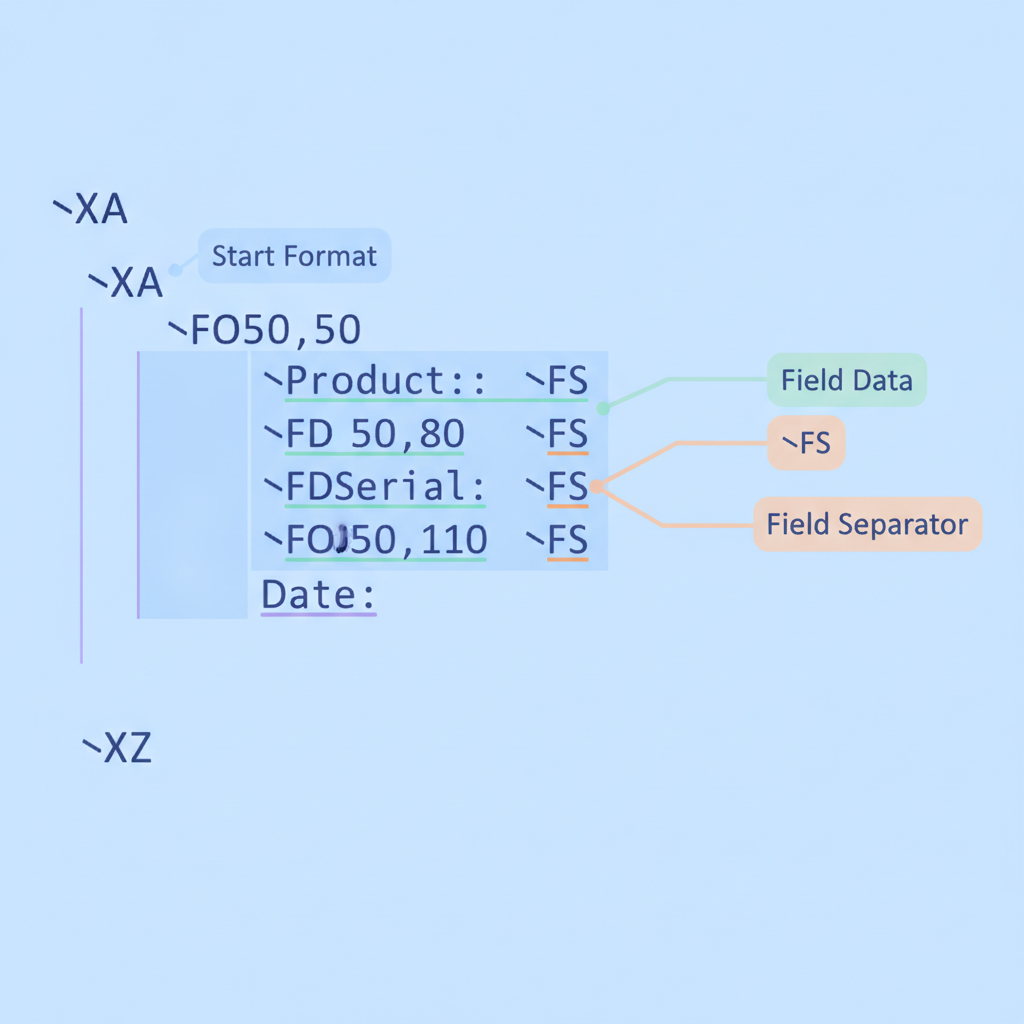
annotated ZPL code block showing a full label with three fields, each FD highlighted in one color and each FS highlighted in another, with callout labels identifying each command role, no text in the image

Frequently asked questions

Can I leave out ^FS at the end of the last field before ^XZ?

Technically many Zebra printers will still print the label because ^XZ flushes the buffer. But it is bad practice: some firmware versions and all ZPL validators require a closed field, and omitting ^FS will cause errors in any tool that parses ZPL programmatically, including Label Toolkit's ZPL import.

What is the difference between ^FS and ^FE?

^FS closes a field and advances to the next. ^FE (Field Erase) closes the field AND clears the corresponding field in a stored format, resetting it to blank for the next recall. In day-to-day label printing you almost always want ^FS; ^FE is specific to the Store and Recall workflow.

Does ^FD support Unicode or only ASCII?

Standard ZPL II is ASCII-only in the ^FD block. For extended Latin characters, you use the ^CI (Change International font encoding) command to switch to an 8-bit code page such as ISO-8859-1. Full Unicode (UTF-8) requires a Unicode-compatible font loaded on the printer and ^CI28 or ^CI31; without the matching font file, the printer substitutes placeholder glyphs.

Why does my barcode print correctly on screen in a ZPL viewer but not scan from the physical label?

The most common culprit is a print density mismatch: the viewer renders at an assumed DPI that differs from your actual printer DPI, so the barcode modules are too narrow or too wide for the scanner's beam. Confirm the printer's DPI setting (check ~HI host identification response or the configuration label), then set the same DPI in Label Toolkit's export settings before regenerating the ZPL.

Can I put a newline inside a ^FD string to wrap text?

ZPL does not support a newline escape sequence inside a single ^FD block for standard scalable fonts. To print multi-line text, create separate ^FO / font / ^FD / ^FS groups with Y-origin values offset by the line height in dots. Label Toolkit handles multi-line text elements automatically by generating one field group per line.

Ready to put ^FD and ^FS to work without writing raw ZPL by hand? Create your free Label Toolkit account and design your first label in the browser, export clean ZPL with every command correctly formed, and print directly to your Zebra printer in minutes.

#caret FD zpl #caret FS zpl #zpl commands #zpl reference #zebra printing #field data #field separator
OM
Written by Olivia Morgan
View profile →