The ^BC command is the ZPL II instruction that tells a Zebra printer to render a Code 128 barcode. You place it immediately before a ^FD field to define orientation, height, human-readable text position, and check-digit handling. Label Toolkit generates syntactically correct ^BC output automatically, but understanding each parameter lets you tune height, quiet zones, and subset selection for any real-world application.
The full syntax is ^BCo,h,f,g,e,m with six optional parameters; omitting any parameter falls back to the printer's stored default.
Code 128 supports the full ASCII character set through three subsets (A, B, C) and is the correct choice for shipping labels, GS1-128, and most warehouse barcodes.
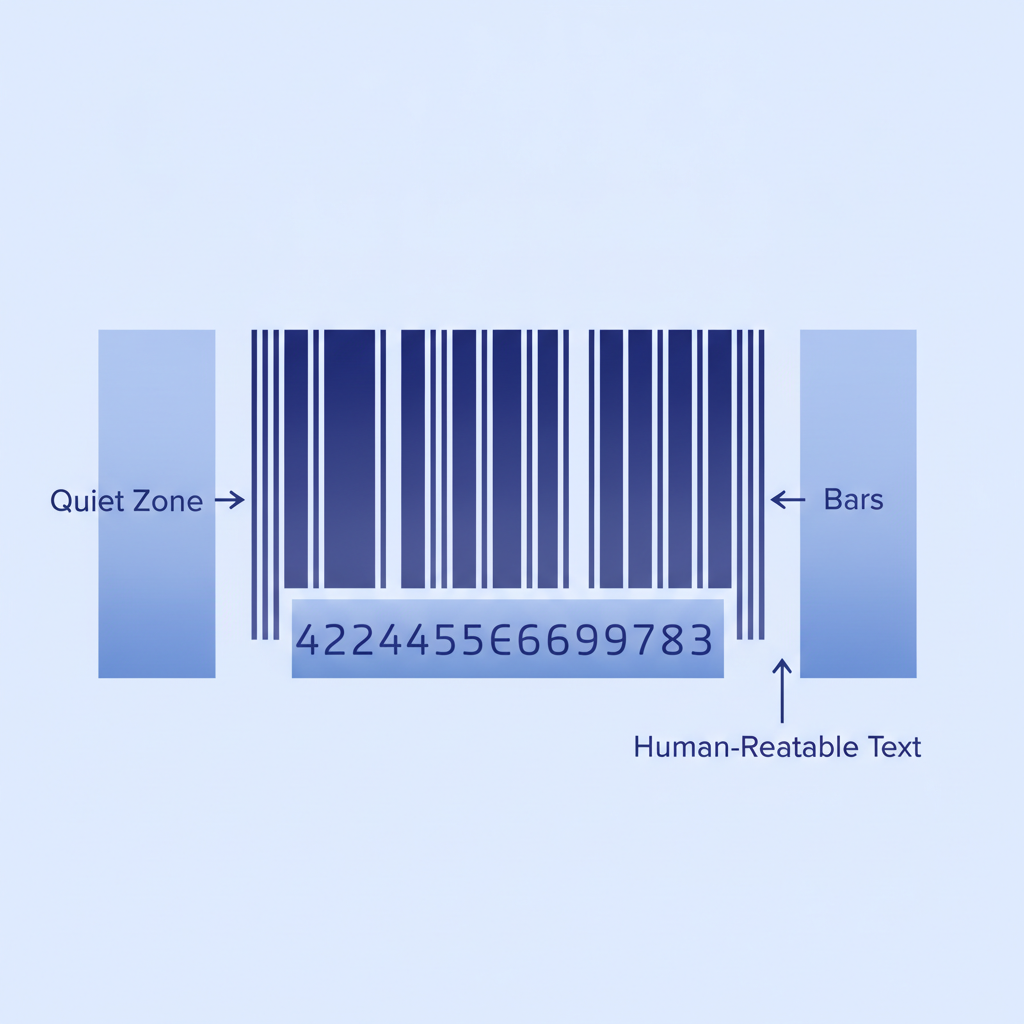
Quiet zones must be at least 10 times the narrow-bar width (X dimension) on each side; at 203 dpi that is roughly 2.5 mm (0.1 inch) per side.
Label Toolkit exports valid ^BC ZPL that you can send directly to any Zebra printer or preview in the built-in ZPL viewer.
What is the ^BC command in ZPL?
In Zebra Programming Language II (ZPL II), every barcode type gets its own command. ^BC is dedicated to Code 128. Code 128 is a high-density, variable-length, alphanumeric 1D symbology that encodes all 128 ASCII characters. It is used in retail shipping (Amazon, FedEx, UPS), GS1-128 logistics labels, and general-purpose warehouse scanning. The ^B prefix means "barcode" and the C identifies the Code 128 symbology specifically.
The command does not contain the data itself. Data always comes from the ^FD command that follows. Think of ^BC as the style sheet and ^FD as the content.
^BC syntax: the full parameter list
The command signature is:
^BCo,h,f,g,e,m
Position
Parameter
Values
Default
What it controls
1
o (orientation)
N normal, R rotated 90°, I inverted 180°, B bottom-up 270°
N
Rotation of the entire barcode field
2
h (height)
Integer in dots; e.g. 100
Printer default (often 10 dots)
Bar height. At 203 dpi, 100 dots = approx 12.5 mm (0.5 in)
3
f (print interpretation line)
Y or N
Y
Whether the human-readable text appears below the bars
4
g (interpretation line above)
Y or N
N
Moves the human-readable text above the bars instead
5
e (check digit)
Y or N
N
Prints the Mod-103 check character in the human-readable line
6
m (mode)
N normal, U UCC/EAN-128 (GS1-128), A auto
N
Selects encoding mode; use U for GS1-128 Application Identifiers
Parameters are positional and comma-separated. You can omit trailing parameters but you must include the commas as placeholders if you skip a middle parameter. For example, ^BCN,100,,N sets orientation, height, uses the default print line, and suppresses the interpretation line above.
Minimal working example
The snippet below is a complete, self-contained ZPL label that prints one Code 128 barcode. You can paste it directly into Label Toolkit's ZPL documentation and viewer or send it to a Zebra printer over TCP port 9100.
^XA
^FO50,50
^BCN,100,Y,N,N
^FD1234567890^FS
^XZ
Breaking it down:
^XA opens the label format.
^FO50,50 sets the field origin to 50 dots from the left edge and 50 dots from the top.
^BCN,100,Y,N,N declares a Code 128 barcode: normal orientation, 100 dots tall, human-readable text below, text not above, check digit not shown in human-readable line.
^FD1234567890^FS supplies the data and closes the field.
^XZ closes the label format and triggers the print.
Choosing the right bar height
The GS1 General Specifications recommend a minimum bar height of 5 mm or 15% of the barcode length, whichever is greater, for Code 128 symbols used in retail supply chains. In practice, shipping labels use 25 mm (roughly 500 dots at 203 dpi, or 750 dots at 300 dpi) so that handheld scanners can read the symbol even if the label is slightly skewed.
A quick reference for common printer resolutions:
Printer DPI
Dots per mm
100 dots =
Typical shipping height (25 mm)
203 dpi
8 dpmm
12.5 mm
200 dots
300 dpi
11.8 dpmm
8.5 mm
295 dots
600 dpi
23.6 dpmm
4.2 mm
590 dots
X dimension and quiet zones
The X dimension is the width of the narrowest bar in a barcode symbol, which sets the scale of the entire symbol. In ZPL, the X dimension for ^BC is inherited from the ^BY (Bar Width Default) command. If you omit ^BY, most Zebra printers default to a 2-dot narrow bar.
At 203 dpi a 2-dot X dimension equals roughly 0.25 mm. The GS1 standard requires a quiet zone of at least 10X on the left and 10X on the right, which is 2.5 mm at that X dimension. Quiet zones are the blank white space on either side of the bars; scanners use them to detect the start and end of the symbol. If your ^FO origin is too close to the label edge, the left quiet zone gets clipped and the barcode may fail to scan.
To explicitly set an X dimension of 3 dots and a wide-to-narrow ratio of 3.0 before the barcode command:
GS1-128 (formerly known as UCC/EAN-128) is not a separate symbology. It is Code 128 with a mandatory FNC1 character inserted after the start code, structured Application Identifiers (AIs), and a strict data format governed by GS1 International. To generate GS1-128 output in ZPL, pass U as the mode parameter:
Here >8 is the ZPL escape sequence that inserts FNC1. The AI (01) indicates a GTIN-14 and (17) indicates an expiry date. The printer in U mode handles the parentheses in the human-readable line automatically.
Rotating a barcode with orientation parameter
Warehouse bin labels, pallet labels, and panel labels sometimes need the barcode rotated 90 degrees so a forklift-mounted scanner can read it while traveling parallel to the label. Use the R orientation value:
^XA
^FO200,50
^BCR,200,Y,N,N
^FDBIN-042^FS
^XZ
With R, the barcode prints rotated 90 degrees clockwise. The height parameter still controls what visually becomes the bar width after rotation, so you may need to increase it to fill the label width in the rotated orientation.
Suppressing the human-readable line
Some applications print the decoded text in a separate ^FD text field using the ^A font command for precise typography. In that case, suppress the automatic interpretation line by passing N for the f parameter:
^BCN,100,N,N,N
This is common on pharmaceutical labels where a specific font size or a bilingual human-readable string is required below the bars. See the ^A font ZPL command reference for controlling text appearance in those cases.
How ^BC fits into a full label format
The command does not stand alone. It depends on the field framework provided by ^FO, ^FD, and ^FS, and it lives inside a label delimited by ^XA and ^XZ. A complete label with both a text field and a barcode field looks like this:
The most frequent causes are a quiet zone clipped by a label edge (move ^FO at least 10X dots from the edge), an X dimension so small the printer cannot resolve individual dots at that DPI (increase ^BY to 2 or 3 dots), or a data string containing characters that exceed what Subset A or B can represent without switching (use Subset C for pure numeric strings longer than 12 characters to improve density).
The human-readable text is missing
Check that the f parameter is Y and that the bar height is tall enough to leave room below the bars for the text. If the label is very short vertically, the printer may silently clip the interpretation line. Reducing bar height by 20 dots usually resolves this.
The label output looks correct in the viewer but not on the printer
This is almost always a DPI mismatch. If you designed the label assuming 203 dpi but your printer is 300 dpi, all coordinates and heights will appear scaled up. Always set ^PR (print rate) and confirm DPI with a ~HI (host identification) command sent to the printer before finalizing dot counts.
GS1-128 data is rejected at the retailer portal
Confirm the FNC1 escape (>8) is present and that the AI structure is correct. GS1-128 AIs must be in the GS1 General Specification; for example, AI 00 is an SSCC-18 (18 digits), not a GTIN-14. Mixing up the AI digit count is the most common data-layer error.
Frequently asked questions
What is the difference between ^BC and ^BQ in ZPL?
^BC generates a one-dimensional Code 128 barcode, which is a series of parallel bars readable by laser and linear CCD scanners. ^BQ generates a two-dimensional QR Code, which encodes data in a matrix pattern and can hold much more information. Use ^BC for shipping and retail supply chain labels; use ^BQ when you need a URL, large payload, or 2D scanning capability.
Do I need to calculate a check digit before passing data to ^BC?
No. The Zebra printer calculates and appends the mandatory Mod-103 check character automatically. The e parameter only controls whether that check character is visible in the human-readable interpretation line, not whether it is encoded in the bars.
How tall should a Code 128 barcode be on a 4x6 shipping label?
On a standard 4 inch by 6 inch (102 mm by 152 mm) shipping label at 203 dpi, a bar height of 200 dots (25 mm) is the GS1-recommended minimum for supply-chain use, and 250 to 300 dots is more practical for handheld scanner read rates. At 300 dpi, use 295 to 350 dots for the same physical height.
Can ^BC encode all ASCII characters including lowercase?
Yes. Code 128 Subset B covers all printable ASCII characters including lowercase letters. Subset A covers uppercase, numerics, and control characters. The printer selects the appropriate subset automatically unless you prefix the data with a specific subset selector. For pure digit strings of even length, Subset C is selected automatically, encoding two digits per symbol character for maximum density.
How do I use ^BC in Label Toolkit?
Label Toolkit generates ^BC commands automatically when you add a barcode element to your design and set the symbology to Code 128. You can also import existing ZPL containing ^BC and the designer will parse it into an editable barcode field. Export your finished design as ZPL for direct Zebra printing or as a vector PDF for offset and digital print runs.
Ready to design your first Code 128 label without writing a single line of ZPL by hand? Create your free Label Toolkit account and generate print-ready ZPL or PDF in minutes.