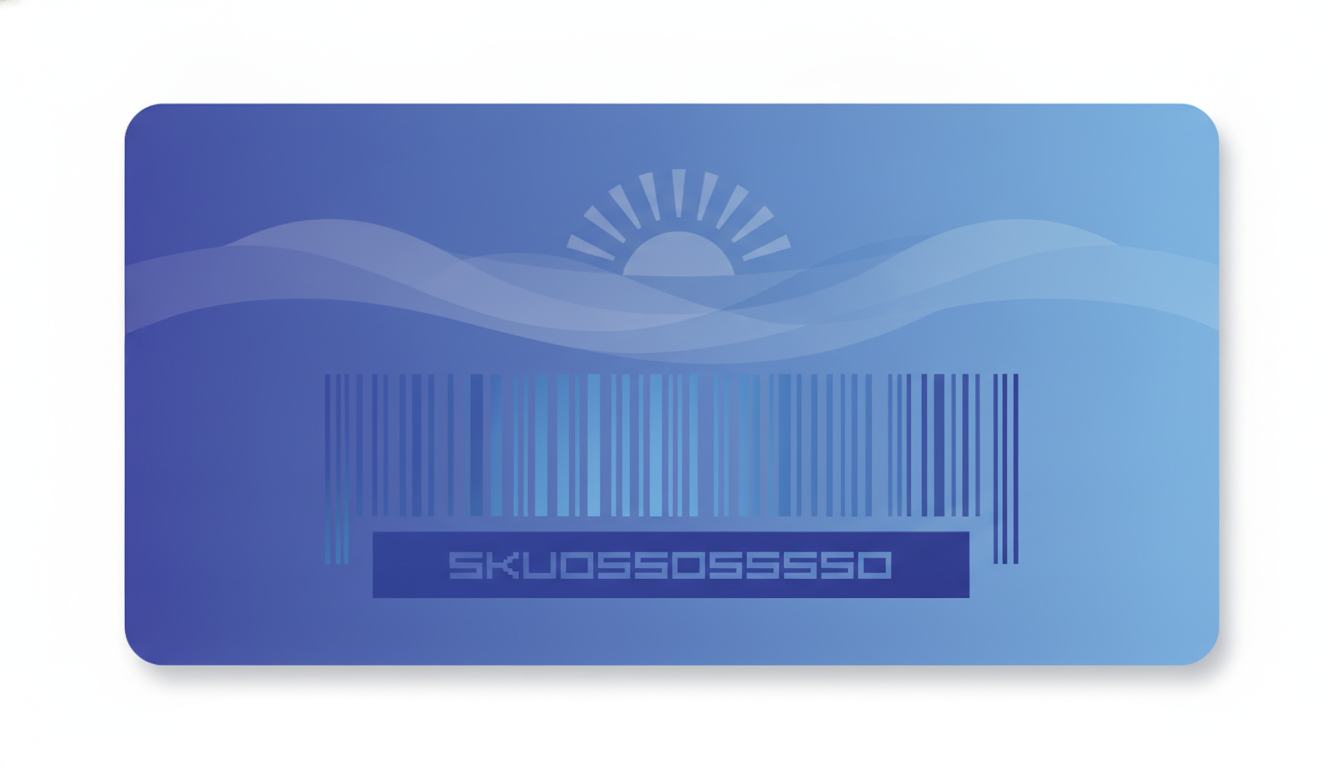
A SKU (Stock Keeping Unit) is a unique alphanumeric code a business assigns to each distinct product variant to track inventory, sales, and fulfillment. Unlike a barcode standard such as UPC or EAN, a SKU is entirely internal: you define the format, you own the logic, and it never needs to be registered with any external body. Label Toolkit lets you design, generate, and print Code 128 SKU barcode labels in your browser for free, with no software to install.
A SKU is your own internal identifier for a specific product variant; it is not a global standard like a GTIN or UPC.
Code 128 is the best barcode symbology for SKUs because it encodes the full alphanumeric character set at high density.
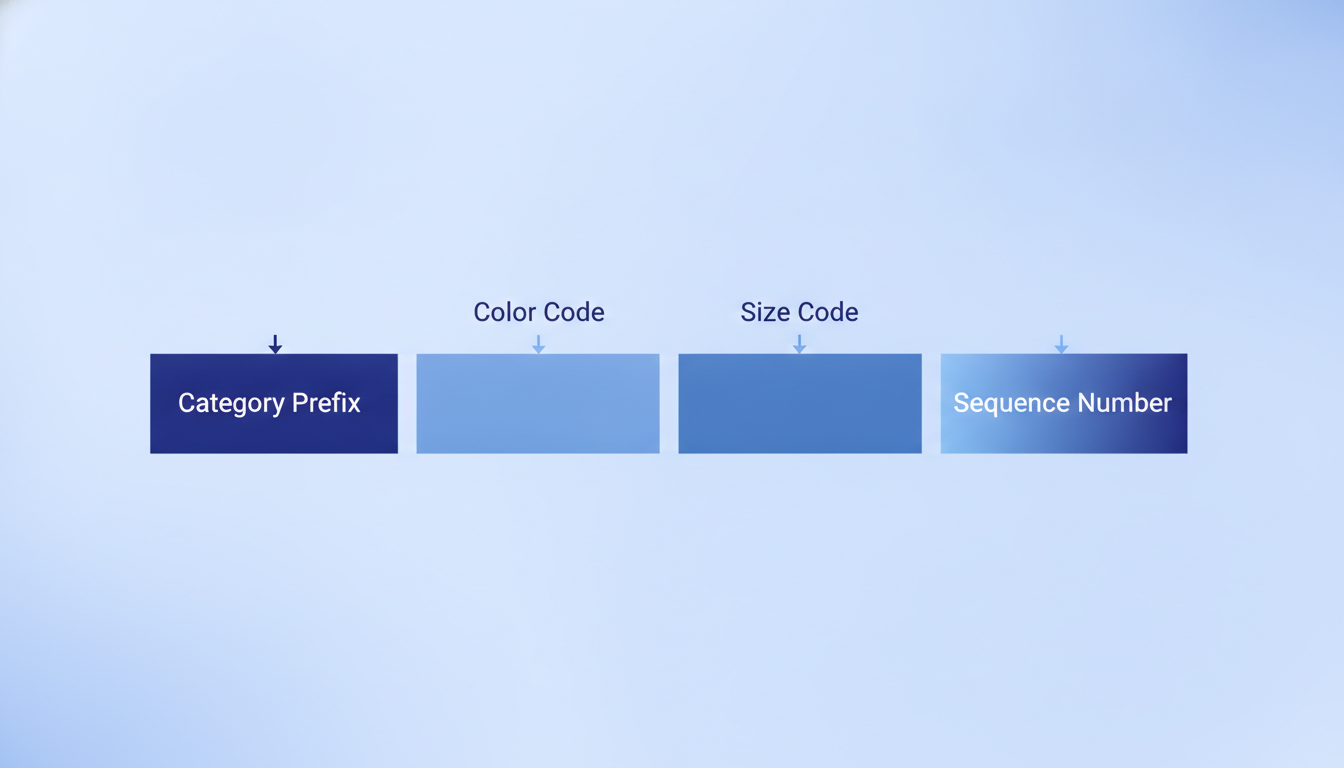
A consistent SKU format (category prefix, attribute codes, sequence number) prevents duplicates and speeds up warehouse operations.
Label Toolkit's data merge lets you upload a CSV of hundreds of SKUs and print a unique barcode label for each one in a single batch, all in the browser.
What Does SKU Mean, Exactly?
SKU stands for Stock Keeping Unit. The term originated in brick-and-mortar retail, where every shelf position held exactly one product variant and needed a trackable ID. Today it applies equally to e-commerce warehouses, manufacturing floors, and distribution centers.
The critical distinction: a SKU is your code, not a universal one. Two different retailers can sell the same physical product and assign it completely different SKUs. That is by design. Your SKU should reflect how you organize and locate things, not how the manufacturer labels the carton.
SKU vs UPC vs GTIN: What Is the Difference?
Identifier
Who assigns it
Globally unique?
Requires registration?
Typical use
SKU
Your business
No (internal only)
No
Internal inventory tracking
UPC-A
GS1 (via company prefix)
Yes
Yes, via GS1
Retail point-of-sale scanning
EAN-13
GS1
Yes
Yes, via GS1
Retail POS, international trade
GTIN
GS1
Yes
Yes, via GS1
Supply chain, marketplaces
If you sell on Amazon and need an FNSKU, or sell to retailers that require a UPC, you will need those identifiers in addition to your SKU. See our guide on what a GTIN is and how global trade item numbers work for the full picture on registered product codes.
How to Build a Good SKU Numbering System
There is no single correct SKU format, but there are principles that separate systems that scale from ones that cause confusion six months later.
The Three-Part SKU Structure
Most inventory experts recommend a segmented format: a category or department prefix, one or two attribute codes (color, size, material), and a sequential or random numeric suffix. A typical result looks like this:
APR-BLK-XL-0042
Breaking that down: APR = Apparel, BLK = Black, XL = size extra-large, 0042 = sequence number within that variant group. Anyone in your warehouse can glance at the SKU and immediately know the product category, color, and size without opening a database.
SKU Format Rules That Prevent Problems
Keep it under 20 characters. Most warehouse management systems (WMS) and e-commerce platforms accept up to 40, but shorter SKUs are faster to type, easier to read at a glance, and less prone to transcription errors.
Use only uppercase letters and digits. Avoid spaces, slashes, special characters, and lowercase letters. A SKU like APR-BLK-XL-0042 is fine; apr/blk xl (42) will break CSV imports and WMS fields.
Never start with a zero if the SKU is purely numeric. Many spreadsheet applications silently strip leading zeros from number-formatted cells, corrupting the code.
Do not encode information that changes. Price and supplier name are bad SKU components because they may change; the SKU cannot.
Use consistent segment lengths. Pad numeric sequences with leading zeros to a fixed width (e.g., 0001 to 9999) so alphabetical and numeric sort order stay aligned.
Document the schema. Write down what each segment means and store it somewhere accessible. The person who designed your SKU system will eventually leave, and the schema must survive them.
Test for uniqueness before committing. Run a quick deduplication check in a spreadsheet or database before printing labels. A duplicate SKU is expensive to fix post-launch.
How Many SKUs Is Too Many?
Small businesses often start with dozens of SKUs; large retailers manage millions. The number is not the problem. The structure is. A flat list of arbitrary SKUs with no naming logic becomes unmanageable around the 200-item mark. A well-segmented schema scales to hundreds of thousands without confusion.
Which Barcode Should You Use for a SKU?
Code 128 is the standard choice for internal SKU barcodes. It encodes the full ASCII character set (letters, digits, and common punctuation), achieves very high data density compared to older symbologies like Code 39, and is readable by virtually every handheld scanner on the market.
A Code 128 barcode for the SKU APR-BLK-XL-0042 typically prints well at a minimum bar height of 10 mm (0.4 in) and a narrow bar width (X-dimension) of at least 0.25 mm (10 mil) at 203 DPI. At 300 DPI the minimum X-dimension drops to around 0.169 mm, producing a denser, crisper result. For a full technical breakdown of the symbology, see our Code 128 barcode format and character set guide.
QR codes are an alternative if you need to encode a URL or more than roughly 25 characters. For a pure SKU string that is 20 characters or fewer, Code 128 is smaller, faster to scan, and universally supported by handheld laser scanners that may not read 2D codes.
Code 128 vs Code 39 for SKU Labels
Feature
Code 128
Code 39
Character set
Full ASCII (128 chars)
43 chars (A-Z, 0-9, and 7 symbols)
Data density
High (roughly 2x Code 39)
Low
Minimum label width for 20-char SKU at 203 DPI
Approx. 38 mm (1.5 in)
Approx. 70 mm (2.75 in)
Check digit
Mandatory (built in)
Optional
Scanner compatibility
Universal
Universal
Recommended for SKUs?
Yes
Only if your scanner cannot read Code 128 (rare)
How to Print SKU Barcode Labels with Label Toolkit
The fastest path from a SKU list to printed labels is Label Toolkit's browser-based designer combined with data merge from a CSV. The steps below produce a 4 x 1.5 inch (101.6 x 38.1 mm) SKU label with a Code 128 barcode and a human-readable product name, ready to send to any thermal printer or export as a vector PDF.
Step 1: Prepare Your SKU Spreadsheet
Open a new spreadsheet in Excel or Google Sheets and create columns for every field you want on the label. A minimal setup looks like this:
Set the canvas size to 101.6 mm wide by 38.1 mm tall (or 4 x 1.5 in). Use the unit toggle in the canvas settings to switch between mm and inches.
Add a Barcode element and select Code 128 as the symbology. In the barcode data field, type the placeholder for your SKU column: {{SKU}}. The designer will substitute real SKU values at merge time.
Set the barcode height to at least 10 mm. At 203 DPI, a height of 15 mm (roughly 120 dots) gives scanners a comfortable target. At 300 DPI, 10 mm is sufficient for close-range scanning.
Add a Text element for the product name field: {{ProductName}}. Position it above or below the barcode. A font size of 8 pt to 10 pt reads clearly at label scale.
Optionally add a second text element showing the SKU string in plain text below the barcode so operators can read it without a scanner.
Step 3: Upload Your CSV and Run the Merge
Click Data Merge in the Label Toolkit toolbar.
Upload the CSV you prepared in Step 1. The tool reads the headers and maps them to your {{FieldName}} placeholders automatically.
Preview the first few records to confirm the SKU string is encoding correctly in the barcode element and the product name is wrapping as expected.
Click Generate All. Label Toolkit creates one label per CSV row. For a list of 500 SKUs, that is 500 unique Code 128 barcode labels generated in seconds.
Step 4: Print or Export
You have two output paths:
Print directly to a thermal printer. Label Toolkit sends the job to your system print dialog. Select your Zebra, Rollo, or DYMO printer and choose the matching label stock.
Export as a vector PDF. The PDF output preserves barcode geometry at full resolution, suitable for commercial printing or archiving. Barcodes in the PDF are true vector paths, not rasterized images, so they remain crisp at any zoom level.
Export ZPL. If you are printing to a Zebra printer at volume, export the label as ZPL and send it directly to the printer over the network. The ^BC command in ZPL handles Code 128 natively. A typical single-label ZPL snippet for a Code 128 SKU looks like this:
In that snippet: ^FO50,30 sets the field origin 50 dots from the left and 30 dots from the top; ^BY2 sets the bar width multiplier to 2 (X-dimension of 2 dots, or 0.25 mm at 203 DPI); ^BCN,80,Y,N,N selects Code 128 normal orientation with a bar height of 80 dots and human-readable text enabled; ^FD contains the SKU data; ^A0N,28,28 selects the default scalable font at 28 by 28 dots for the product name text.
Printing SKU Labels in Bulk: The Data Merge Workflow
Bulk SKU label generation is where Label Toolkit's data merge capability pays off most clearly. Instead of creating one label at a time, you design once and let the CSV drive production. This is the same workflow covered in depth in the data merge and workflows pillar, which includes tips for handling variable field lengths, conditional elements, and serial numbers alongside SKU data.
A few practical notes for large SKU runs:
If any SKU contains a comma, wrap the field in double quotes in the CSV or use a tab-separated file instead.
Validate your SKU column before merging. A single malformed value (e.g., an empty cell or a value that is too long for the barcode module width) will produce an unreadable barcode for that row.
Run a test print of 5 to 10 labels and scan each one with the actual scanner your warehouse uses before committing to a full production run. Scanner firmware and scan distance can affect which bar widths are reliable.
SKU Label Design: What Else to Include
Beyond the barcode and SKU string, your label should carry enough human-readable information that a warehouse worker can identify the item without a scanner in hand. Standard elements include:
Product name (brief, e.g., "Black Hoodie XL")
SKU in plain text below or beside the barcode
Price, if the label is customer-facing (retail shelf or hang tag)
Lot number or batch code, if you track production batches for quality or recall purposes
Company logo, optional, but useful for returned-goods identification
For a 4 x 1.5 in label at 203 DPI, keep the barcode height at least 15 mm and leave a minimum quiet zone (the blank space on either side of the barcode) of 10 times the X-dimension. At an X of 0.25 mm that is a 2.5 mm margin on each side. Violating the quiet zone is one of the most common reasons a barcode fails to scan. See our quiet zone barcode margin guide for the exact rule by symbology.
GS1 publishes technical specifications for barcode sizing and print quality in their GS1 General Specifications, which is the authoritative reference if your SKU labels must also carry a GTIN or GS1-128 barcode for retail compliance.
Common SKU Mistakes and How to Avoid Them
Mistake
Why it causes problems
Fix
Using spaces in SKUs
Breaks CSV parsing and some WMS fields
Use hyphens or underscores as separators
Encoding price in the SKU
SKU must change every time price changes
Store price as a separate database field
Starting with 0 in a numeric-only SKU
Excel removes leading zeros on import
Use alphanumeric SKUs or format the column as Text
Reusing a retired SKU
Historical orders reference the old product
Mark retired SKUs as inactive; never reassign
No documented schema
New staff cannot decode or extend the system
Write a one-page SKU schema doc and version it
Barcode quiet zone too small
Scanner cannot reliably detect barcode boundaries
Leave at least 10x the X-dimension on each side
Frequently Asked Questions
What is the difference between a SKU and a barcode?
A SKU is the alphanumeric code itself, a piece of data. A barcode is a visual, machine-readable representation of that data. When you print a SKU barcode label, you are encoding your SKU string into a barcode symbology (usually Code 128) so a handheld scanner can read it instantly without typing.
Do SKUs have to follow a specific format or standard?
No. Unlike GTINs or UPCs, SKUs are entirely internal and have no governing standard. You define the format. The best practice is to use a consistent segmented structure (category, attributes, sequence) with only uppercase letters and digits, but the specific format is up to you.
What barcode type should I use for a SKU?
Code 128 is the best choice for most SKU applications. It encodes the full alphanumeric character set at high density, fits on small labels, and is readable by virtually every laser and imager scanner. Use Code 39 only if your equipment is too old to read Code 128, which is uncommon today.
How many characters can a SKU be?
There is no hard limit, but 8 to 20 characters is the practical sweet spot. Shorter SKUs are faster to type and less prone to errors; longer ones can carry more structured information. Most WMS and e-commerce platforms accept up to 40 characters, but Code 128 can technically encode up to 48 characters on a standard 4-inch-wide label at 203 DPI with a readable X-dimension.
Can I generate SKU barcodes from a spreadsheet for free?
Yes. Label Toolkit is free to start and supports CSV data merge directly in the browser. Upload your spreadsheet, map the SKU column to a Code 128 barcode field, and generate a unique label for every row with no install and no per-label cost.
Ready to print your first SKU barcode labels? Create a free Label Toolkit account and go from CSV to printed Code 128 labels in under five minutes.
#what is a sku #sku barcode #sku number #inventory management #code 128 #barcode labels #data merge #bulk labels