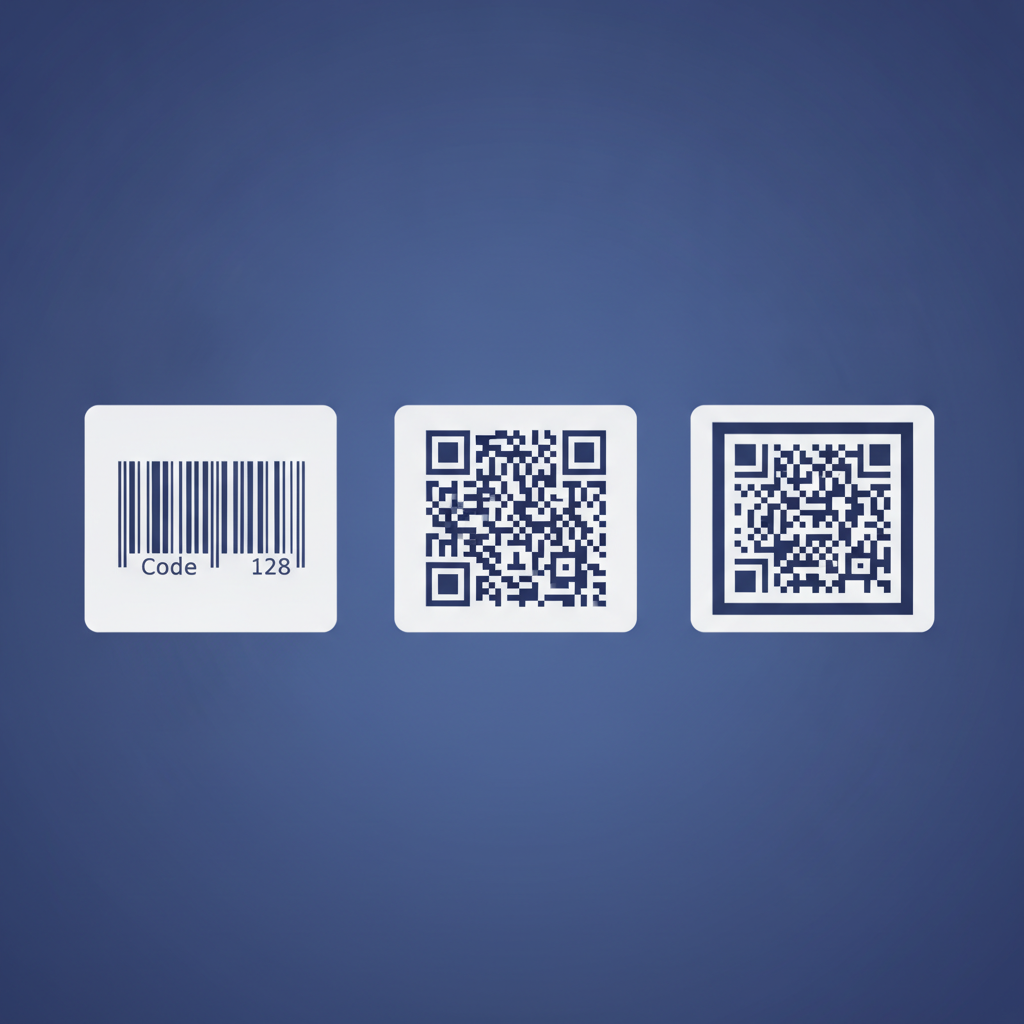
A Python barcode label workflow lets you generate print-ready ZPL strings programmatically, send them directly to a Zebra thermal printer over TCP, or POST them to Label Toolkit's REST API to render a preview or trigger a print job, all without installing any desktop software. The examples below cover Code 128, QR Code, bulk CSV merge, and socket-based printing in Python 3.9 and later.
- Label Toolkit exposes a free public ZPL API you can call with Python's
requestslibrary in under 10 lines of code. - Raw ZPL strings can also be sent directly to any Zebra printer over TCP port 9100, no driver needed.
- All barcode math (check digits, encoding modes) is handled server-side, so your Python script only has to supply the data.
- Bulk label generation from a CSV or database result set takes fewer than 30 lines of standard Python.
What is ZPL and why does it matter for Python integrations?
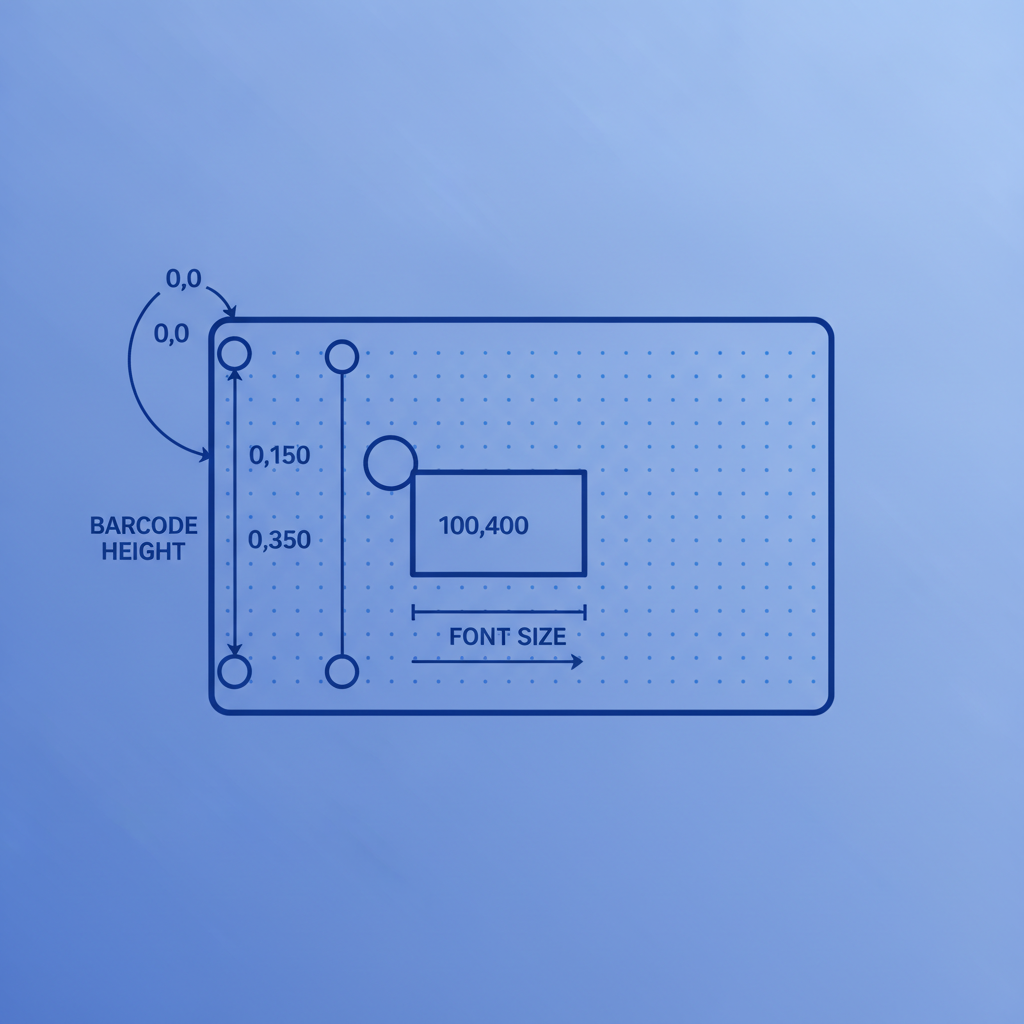
ZPL (Zebra Programming Language) is a text-based command language interpreted by Zebra thermal printers. Each label is a small text file that begins with ^XA (start of label) and ends with ^XZ (end of label). Between those markers you place field commands: ^FO sets the X,Y origin of a field in dots, ^A selects a scalable font, ^FD carries the field data, ^FS closes the field, and ^BC or ^BQ render a barcode. Because ZPL is plain text, Python string formatting or templating engines like Jinja2 can build it with almost no overhead.
A 203 DPI (dots per inch) Zebra printer has 8 dots per millimetre. So a field origin of ^FO50,30 places the field 50 dots (6.25 mm) from the left and 30 dots (3.75 mm) from the top. At 300 DPI the printer has 11.8 dots per millimetre, so the same numeric offset produces a physically smaller position. Keep that conversion in mind whenever you hard-code coordinates in your templates.
Environment setup
You only need two libraries for the examples that follow:
- Install
requestsfor HTTP calls to Label Toolkit's API:pip install requests. - Python's built-in
socketmodule handles direct TCP printing to a Zebra printer, so nothing extra is needed for that path. - For CSV bulk workflows, Python's built-in
csvmodule is sufficient. If you prefer a DataFrame approach,pip install pandasand adapt the loop. - Optional but recommended: store your API key in an environment variable rather than hard-coding it. Use
os.environ.get("LT_API_KEY").
Anatomy of a ZPL label in Python
Before calling any API, understand the template you are building. The snippet below produces a 4 inch x 6 inch (101.6 mm x 152.4 mm) shipping label at 203 DPI with a human-readable Code 128 barcode and a text line above it:
ZPL_TEMPLATE = """
^XA
^PW812
^LL1218
^FO50,30^A0N,40,40^FD{recipient}^FS
^FO50,100^A0N,28,28^FD{address}^FS
^FO50,200^BCN,100,Y,N,N^FD{tracking}^FS
^XZ
"""

def build_label(recipient: str, address: str, tracking: str) -> str:
    return ZPL_TEMPLATE.format(
        recipient=recipient,
        address=address,
        tracking=tracking,
    )
Key parameters explained:
^PW812: print width 812 dots (812 / 8 = 101.5 mm at 203 DPI, effectively 4 inches).^LL1218: label length 1218 dots (152.25 mm, effectively 6 inches).^A0N,40,40: built-in font 0, orientation Normal, 40 dots tall, 40 dots wide.^BCN,100,Y,N,N: Code 128, Normal orientation, 100 dots tall, human-readable below, no check digit override, no Mode field. See the ^BC command reference for all parameters.
Sending a label to Label Toolkit's REST API
Label Toolkit's public ZPL API accepts a ZPL string and returns a PNG preview or triggers a registered printer. The quickstart endpoint is documented at /docs. Here is a minimal Python function that posts a ZPL string and saves the PNG preview to disk:
import os
import requests

API_URL = "https://api.labeltoolkit.com/v1/zpl/render"
API_KEY = os.environ.get("LT_API_KEY", "")

def render_label_preview(zpl: str, output_path: str = "label_preview.png") -> None:
    """POST ZPL to Label Toolkit and save the PNG preview."""
    response = requests.post(
        API_URL,
        headers={
            "Authorization": f"Bearer {API_KEY}",
            "Content-Type": "application/json",
        },
        json={"zpl": zpl, "dpi": 203, "width_mm": 101.6, "height_mm": 152.4},
        timeout=10,
    )
    response.raise_for_status()
    with open(output_path, "wb") as f:
        f.write(response.content)
    print(f"Preview saved to {output_path}")

if __name__ == "__main__":
    zpl = build_label("Acme Corp", "123 Main St, Springfield", "1Z999AA10123456784")
    render_label_preview(zpl)
The dpi field tells the renderer which dot density to assume when converting dot coordinates to pixels. Pass 203 for a standard Zebra ZD420 or ZD620, and 300 for high-resolution models. Mismatching DPI here gives you a preview that looks stretched or squashed, even though the physical print on the correct printer would be fine.
Sending ZPL directly to a Zebra printer over TCP
If your Python process runs on the same LAN as a networked Zebra printer, you can bypass the API entirely and send raw ZPL over TCP port 9100. Zebra printers accept raw socket connections on that port by default:
import socket

def print_to_zebra(zpl: str, printer_ip: str, port: int = 9100) -> None:
    """Send a ZPL string directly to a networked Zebra printer."""
    with socket.create_connection((printer_ip, port), timeout=5) as sock:
        sock.sendall(zpl.encode("utf-8"))
    print(f"ZPL sent to {printer_ip}:{port}")

# Example usage
zpl = build_label("Warehouse A", "Bin 42, Shelf 3", "WH-2024-00891")
print_to_zebra(zpl, printer_ip="192.168.1.105")
A few practical notes. The printer must have its "Raw TCP" or "Line Print" mode enabled in its network settings. If you see the printer output gibberish text, the port is likely serving a different protocol. The encoding must be UTF-8 or the Zebra firmware's configured code page; most modern Zebra firmware defaults to UTF-8 when you send ^CI28 (UTF-8 international character set command) at the top of the label. Add ^CI28 immediately after ^XA if you are printing non-ASCII characters like accented letters.
Generating a QR Code barcode label in Python
For a QR Code barcode label, swap the ^BC command for ^BQ. The ^BQ command syntax is ^BQa,b,c where a is orientation (N for normal), b is model (2 for standard QR), and c is the magnification factor (1 to 10). A magnification of 4 on a 203 DPI printer produces a module size of 4 dots, or about 0.5 mm per module, which is comfortably above the minimum recommended 0.33 mm module size specified in DENSO WAVE's QR Code specification.
QR_TEMPLATE = """
^XA
^CI28
^PW609
^LL609
^FO30,30^BQN,2,4^FDQA,{data}^FS
^FO30,320^A0N,30,30^FD{label_text}^FS
^XZ
"""

def build_qr_label(data: str, label_text: str) -> str:
    return QR_TEMPLATE.format(data=data, label_text=label_text)

# 3 inch x 3 inch label at 203 DPI (609 x 609 dots)
zpl = build_qr_label("https://example.com/asset/1042", "Asset #1042")
print_to_zebra(zpl, printer_ip="192.168.1.105")
The ^FDQA, prefix is required by the ^BQ command. The Q selects the error-correction level (Q = 25 % recovery, the second-highest level). Swap it for M (15 %) if you need to fit more data, or H (30 %) for a small label where print quality may be inconsistent.
Bulk label generation from a CSV file
Warehouse automation almost always involves printing many labels in one batch. The following script reads a CSV, builds a ZPL string per row, and either sends each label to a printer or writes all of them to a single .zpl file for later use: