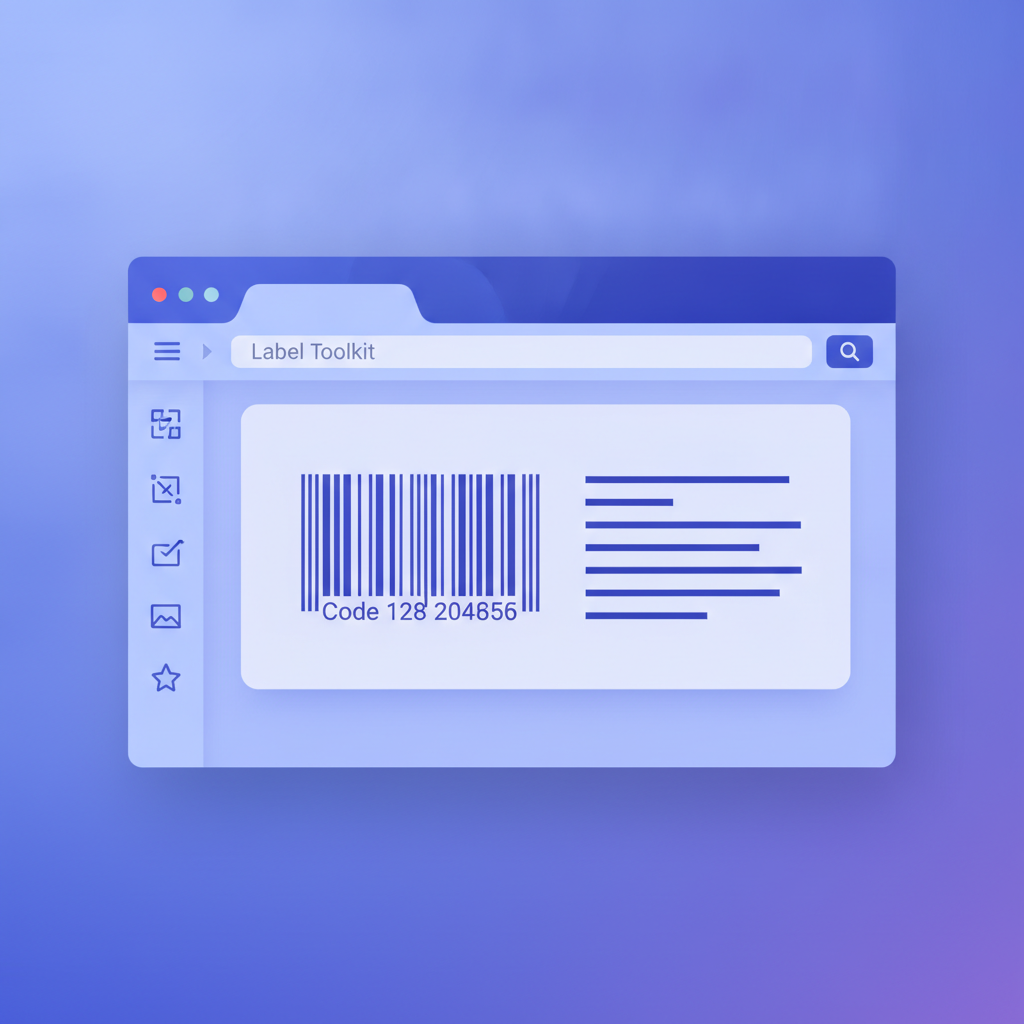
A free label maker online is a browser-based tool that lets you design, preview, and print labels without downloading or installing any software. Label Toolkit is exactly that: open the designer in Chrome, Firefox, Edge, or Safari, and you can build a shipping label, product label, or barcode label in minutes, then print to any connected printer or export to PDF or Zebra ZPL format.
Label Toolkit runs 100% in the browser; no installer, no plugin, no account required to start.
It generates real barcodes (Code 128, QR, Data Matrix, UPC, EAN, GS1-128, ITF-14) that scan reliably at 203 dpi and 300 dpi thermal printer resolutions.
You can merge data from a CSV or spreadsheet to produce hundreds of unique labels in one pass.
Labels export as a true vector PDF for laser or inkjet printing, or as Zebra ZPL II code for direct thermal label printers.
What Can You Actually Do With a Free Online Label Maker?
The honest answer depends on the tool. Many "free" label makers online are either feature-locked demos, watermarked exports, or desktop apps that require an installer. Label Toolkit is different: the designer loads in seconds, and the core feature set costs nothing.
Here is what you can do without paying anything:
Set a custom canvas size in millimeters or inches (for example, 100 mm x 150 mm for a standard 4x6 shipping label, or 38 mm x 25 mm for a small product label).
Add text fields, images, shapes, and multiple barcode types on the same label.
Generate barcodes with correct quiet zones automatically enforced (Code 128 requires a minimum 10x module quiet zone on each side; QR Code requires 4 modules).
Export a vector PDF with crop marks and bleed so your labels print sharp at any size.
Export raw Zebra ZPL II code to send directly to a Zebra label printer.
Use data merge to print a batch of labels from a spreadsheet or CSV file.
Who Needs a Free Label Maker Online?
The use cases are broader than most people expect. Below is a quick comparison of common label-making situations and how a browser-based tool handles each one.
Use case
Label type needed
Typical output format
Label Toolkit feature used
E-commerce shipping
4" x 6" shipping label with address and barcode
PDF or ZPL to Zebra printer
Template, data merge, ZPL export
Amazon FBA prep
FNSKU label with Code 128 barcode, 1" x 2" or 2" x 1"
PDF for laser printer or ZPL for thermal
Barcode generator, bulk CSV merge
Retail product labels
Price or ingredient label with EAN or UPC barcode
Vector PDF, sheet layout
Barcode generator, PDF sheet print
Warehouse bin labels
Location code label, QR or Code 39
ZPL for Zebra ZD420 or ZD421
QR generator, sequential numbering, ZPL export
Asset tags
Serial number label, QR code linking to asset record
PDF or ZPL
Auto-numbering, QR with URL, data merge
GHS / compliance labels
Hazard label with pictograms and signal words
PDF with bleed and crop marks
Compliance templates, vector PDF export
How to Design a Label in Label Toolkit: Step by Step
Set your canvas size. Choose a preset (4" x 6", 2" x 1", A4 sheet, etc.) or enter a custom width and height in mm or inches. If you are printing to a Zebra printer at 203 dpi, a 4" x 6" label is 812 x 1218 dots; at 300 dpi it is 1200 x 1800 dots.
Add a text field. Click the Text tool, click the canvas, and type your content. Adjust font, size, and weight in the properties panel.
Add a barcode. Click the Barcode tool and select your symbology. For shipping labels, choose Code 128 or GS1-128. For product labels that need a point-of-sale scanner to read them, choose EAN-13 or UPC-A. For dense data in a small space, choose QR Code or Data Matrix. The designer enforces minimum quiet zones automatically.
Add an image or logo. Upload a PNG or SVG. SVG stays vector at any print size.
Preview and proof. The canvas updates in real time. Zoom to 100% to check that text is readable at actual size.
Export. Choose PDF for laser or inkjet printing, or ZPL for a Zebra thermal printer. If you need ZPL, the exported code wraps your label in a standard ^XA ... ^XZ block with ^FO positioning commands and ^BC or ^BQ barcode commands already set to your canvas dimensions.
How Does the Barcode Generator Work?
Label Toolkit generates barcodes directly in the browser using the SVG or canvas rendering engine; there is no server round-trip for barcode generation. This matters for two reasons: it works offline once the page has loaded, and it is fast enough to preview every keystroke as you type barcode data.
The tool supports the following symbologies, each with the correct structure enforced:
Code 128 (auto A/B/C subset selection): The most compact 1D barcode for alphanumeric data. Start character, data, checksum, and stop bar are all generated automatically. Minimum bar width (X-dimension) is 0.19 mm (7.5 mil) at 203 dpi, and 0.13 mm (5 mil) at 300 dpi.
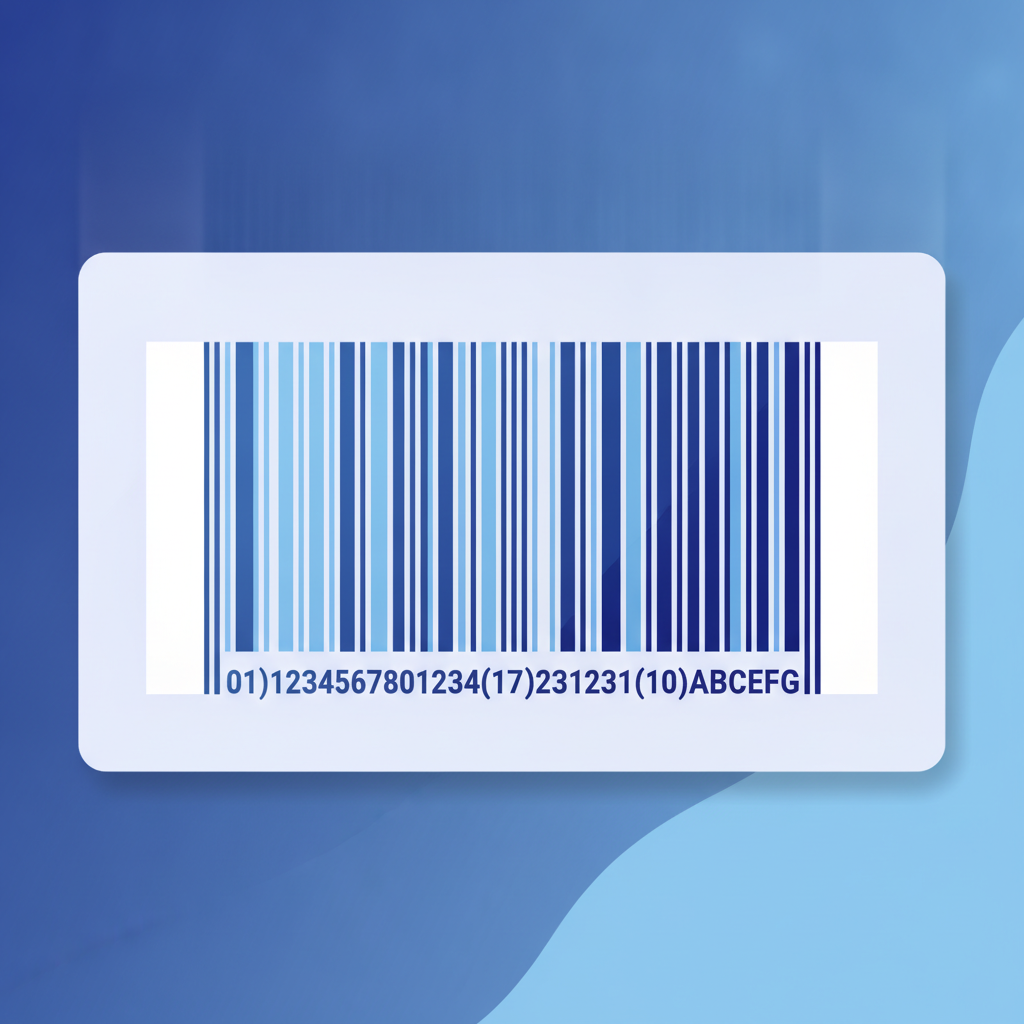
GS1-128: A Code 128 variant that prefixes data with a Function 1 character (FNC1) and wraps Application Identifiers (AIs) such as (00) for SSCC or (01) for GTIN-14.
EAN-13 and UPC-A: Fixed-length numeric barcodes for retail point-of-sale. EAN-13 encodes 13 digits with a check digit; UPC-A encodes 12.
ITF-14: A 14-digit numeric barcode printed on corrugated packaging. Uses a bearer bar frame and requires a minimum X-dimension of 0.635 mm.
QR Code: A 2D matrix code that encodes up to 4,296 alphanumeric characters. Error correction levels L (7%), M (15%), Q (25%), and H (30%) are selectable. The designer enforces a 4-module quiet zone on all four sides, as specified by ISO/IEC 18004.
Data Matrix (ECC200): A 2D matrix code used in electronics, pharmaceuticals, and small-part marking. Minimum cell size is typically 0.254 mm (10 mil) for industrial scanners.
Code 39: An older alphanumeric 1D barcode used in defense and automotive. Less dense than Code 128 but still common in legacy systems.
For a deeper look at which symbology to choose for a specific application, see the complete barcode types guide.
Printing: PDF vs ZPL, and When to Use Each
This is the question most first-time users get wrong. The format you export determines which printer types you can use, and choosing the wrong one wastes time and media.
Export format
Best printer type
Typical use
Key advantage
Vector PDF
Laser, inkjet, or any PDF-capable printer
Product labels, compliance labels, sheet labels
Crisp output at any DPI; works on Avery sheet stock
Zebra ZPL II
Zebra ZD420, ZD421, ZT230, ZT610, or any ZPL-compatible thermal printer
Sent directly to the printer; no rasterization; native thermal speed
ZPL II (Zebra Programming Language II) is the page description language Zebra printers use natively. A ZPL label is a plain-text string. For example, a minimal 4" x 6" label with a single Code 128 barcode looks like this:
^XA
^PW812
^LL1218
^FO50,50^BY3^BCN,100,Y,N,N^FD12345678^FS
^FO50,200^A0N,30,30^FDShip To: Warehouse A^FS
^XZ
Breaking that down: ^XA opens the label format; ^PW812 sets print width to 812 dots (4" at 203 dpi); ^LL1218 sets label length; ^FO50,50 sets the field origin at x=50, y=50 dots; ^BY3 sets the bar width multiplier to 3 dots per module; ^BCN,100,Y,N,N prints a Code 128 barcode 100 dots tall with a human-readable interpretation below it; ^FD12345678^FS is the field data and field separator; and ^XZ closes the format. Label Toolkit writes all of this for you.
Designing one label is easy. Printing 500 unique labels, each with a different name, barcode value, or serial number, is where most free tools fall apart. Label Toolkit handles this with a built-in data merge workflow.
Design your label with placeholder fields. For example, add a text field with the value {{name}} and a barcode with the value {{sku}}.
Upload a CSV file where each column header matches a placeholder name.
The designer generates one label per CSV row, substituting the correct value from each column.
Export all labels as a multi-page PDF or as a batch ZPL file. Each ZPL label is a separate ^XA ... ^XZ block; send the whole file to the printer and it prints them in sequence.
For sequential serial numbers, you do not even need a spreadsheet. The auto-numbering feature increments a counter field automatically across a specified range, with configurable zero-padding (for example, 001, 002, 003 up to 500).
Does Label Toolkit Work With Zebra Printers?
Yes, and this is the area where Label Toolkit goes beyond a simple free label maker online. Most browser-based label tools produce only PDFs. Label Toolkit exports native Zebra ZPL II code that you can send directly to any ZPL-compatible printer. Common models include the Zebra ZD420, ZD421, ZD620, ZT230, ZT410, and ZT610.
You can also import existing ZPL code into the designer to edit it visually. If you have a ZPL template from a legacy system that you want to update, paste the code in and the canvas renders it as editable objects. That feature is covered in detail in the ZPL import guide.
Zebra's official ZPL Programming Guide (available from Zebra's support portal) documents every command the printer firmware understands. Label Toolkit's ZPL output is compatible with firmware versions that support ZPL II, which covers all Zebra printers manufactured after roughly 1992.
If your labels carry GTINs (Global Trade Item Numbers) for retail distribution, or SSCC numbers for logistics, they must conform to GS1 standards. GS1 specifies minimum bar widths, quiet zone sizes, symbol grades, and Application Identifier structures. Errors in any of these cause scan failures at retailer receiving docks, which can result in chargebacks.
Label Toolkit enforces the most common GS1 rules automatically: check digit calculation for EAN/UPC/GTIN, FNC1 prefix insertion for GS1-128, and quiet zone padding sized to the chosen X-dimension. For the official specification, the GS1 barcode standards library is the authoritative source.
Tips for Getting the Best Print Quality
Even the best label design prints badly if the settings do not match the printer. These are the most common mistakes and how to avoid them:
Set the correct DPI before designing. A 203 dpi Zebra printer has a dot pitch of 0.125 mm (5 mil). A 300 dpi printer has a dot pitch of 0.085 mm (3.3 mil). If you design at 300 dpi and print to a 203 dpi printer, barcodes will be wider than intended and may exceed the label boundary.
Do not go below 10 dots for the smallest bar in a 1D barcode. At 203 dpi, 10 dots equals 1.25 mm. Below that, bar edges blur in direct thermal printing and scan reliability drops.
Use the ZPL ^BY command to control bar width. The default is 2 dots per module. For a 203 dpi printer, ^BY3 gives a 0.375 mm X-dimension, which is within the Code 128 specification minimum of 0.19 mm and gives comfortable scanner margin.
Check media type. Direct thermal labels (no ribbon) produce slightly lower contrast than thermal transfer labels. If barcodes are marginal at 203 dpi on direct thermal, switch to 300 dpi or increase the darkness setting (ZPL ^MD command, range -30 to +30).
Frequently asked questions
Is Label Toolkit really free to use?
Yes. The designer opens in your browser at no cost, and you can design, preview, and export labels without creating an account. Creating a free account saves your labels and adds version history, but the core design and export features are free from the start.
Can I use a free online label maker to print on Avery sheets?
Yes. Set your canvas to match the Avery label dimensions (for example, 63.5 mm x 38.1 mm for Avery 5160), then export as a PDF. Print the PDF at 100% scale (not "fit to page") on your Avery sheet stock and the labels will align correctly.
Do I need to know ZPL to use Label Toolkit with a Zebra printer?
No. The designer generates ZPL II code automatically when you export. You design visually and the tool writes the ^XA, ^FO, ^BC, and other commands for you. If you want to understand or edit the raw code, the ZPL reference articles on this site explain every command.
What barcode should I use for a shipping label?
For most shipping labels, Code 128 or GS1-128 is the right choice. Code 128 encodes alphanumeric tracking numbers efficiently and is the format used by UPS, FedEx, and USPS. GS1-128 adds structured Application Identifiers for supply-chain data like weight, lot number, or expiry date.
Can I print labels from a CSV file without a desktop app?
Yes. Label Toolkit's data merge feature runs entirely in the browser. Upload your CSV, map the columns to label fields, and export a multi-page PDF or batch ZPL file. No spreadsheet software or desktop app is involved.
Start Designing Labels Now
Label Toolkit is free to start, runs in any browser, and covers the full label workflow from first design to final print, including barcode generation, data merge, vector PDF export, and native Zebra ZPL II output. Create a free account to save your labels and access version history, or open the designer directly to start without signing up.