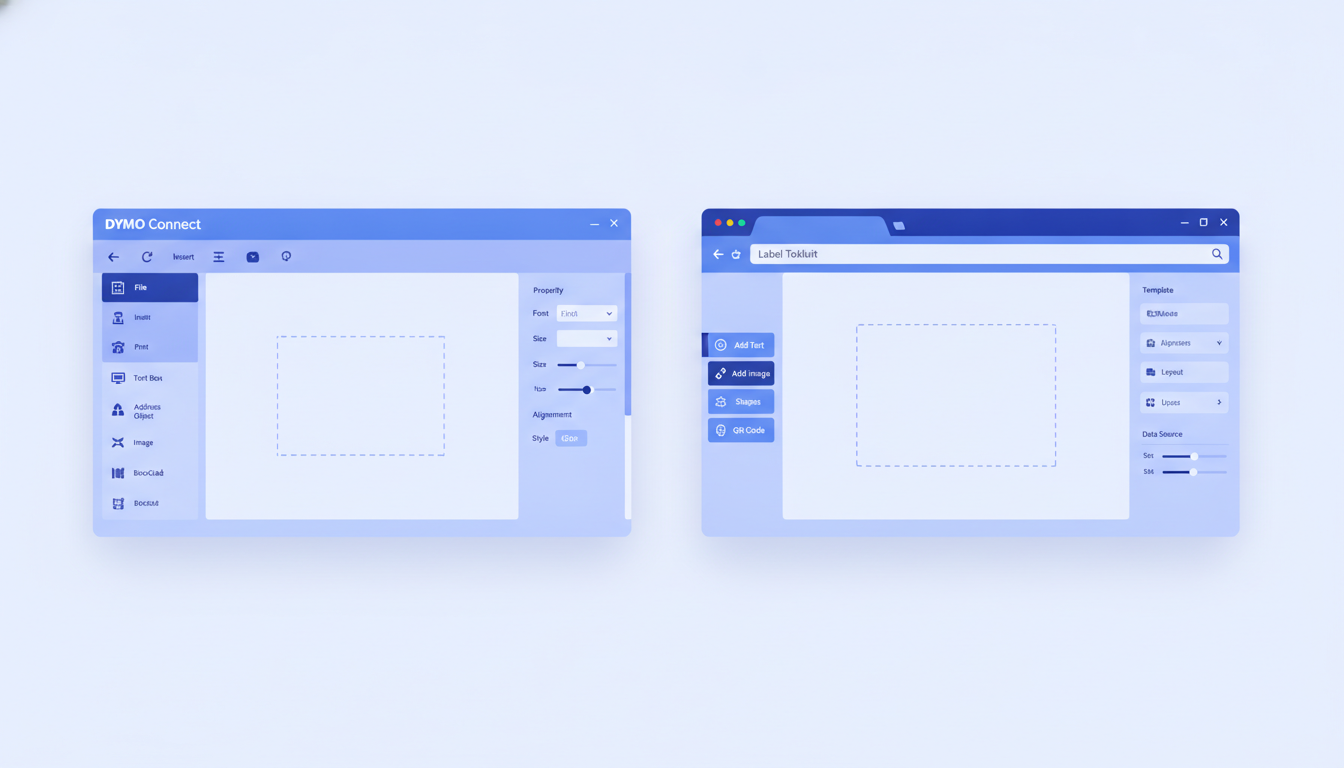
DYMO label software, primarily the DYMO Connect desktop app, is a free tool for designing address, shipping, and product labels on DYMO-brand printers. It runs on Windows and Mac but only drives DYMO hardware, has no barcode data merge from a spreadsheet, and exports no ZPL. Label Toolkit is a free, no-install browser alternative that prints to any printer through an exact-size PDF, generates barcodes and QR codes, and merges data from a CSV or Google Sheet.
DYMO Connect is printer-locked: it only sends jobs to DYMO-brand USB or network printers.
Label Toolkit runs in Chrome, Firefox, Safari, or Edge with no download, and uses your system print dialog to reach any printer including DYMO, Zebra, Brother, or a laser printer.
For barcode labels with variable data (serial numbers, addresses, SKUs), Label Toolkit supports CSV merge; DYMO Connect does not.
Label Toolkit is honest about one limitation: it has no direct USB DYMO driver, so printing always goes through the browser's print dialog rather than DYMO's auto-size detection.
What is DYMO Connect and what does it actually do?
DYMO Connect (formerly DYMO Label software) is the official desktop application published by Dymo, a Newell Brands company. You download and install it on Windows 10 or 11, or macOS 11 and later. The app talks directly to DYMO printers over USB or Wi-Fi using DYMO's proprietary driver, which handles auto-sizing: load a 1" x 2.125" (25 mm x 54 mm) label cartridge and the app detects the size automatically.
The design canvas covers the basics: text boxes, address book import, pre-built templates for Avery-compatible DYMO label sizes, and simple image placement. You can add a barcode field manually, but only one at a time and only for static values. There is no way to link a barcode field to a column in a spreadsheet and print 500 unique labels in a batch. That gap matters the moment someone needs to label a product run, a set of asset tags, or a pile of return parcels with different tracking numbers.
DYMO Connect's specific limitations
Printer lock-in. DYMO Connect only recognises DYMO-brand printers. If your team has a Zebra ZD421 or a Brother QL-820NWB sitting next to the DYMO, the app cannot see it.
Desktop install required. There is no browser version. If IT policy blocks software installs, or you work across multiple machines, you're stuck.
No CSV or spreadsheet merge. Variable-data batch printing (serial numbers, names, addresses from Excel) is not available in DYMO Connect.
No ZPL export. DYMO printers use DYMO's own protocol, not Zebra Programming Language. If you ever move to a Zebra or Honeywell printer, your label files cannot transfer.
Limited barcode symbologies. DYMO Connect supports Code 128, QR, and a handful of others, but advanced symbologies like GS1-128 (with application identifiers) or Data Matrix are absent.
Label size is cartridge-driven. You cannot freely set a custom size in millimetres and print to plain paper or a third-party label sheet without fighting the driver.
How does Label Toolkit compare to DYMO label software?
Feature
DYMO Connect
Label Toolkit
Platform
Windows, macOS (desktop install)
Any browser, no install
Printer compatibility
DYMO printers only
Any printer via system print dialog
Direct USB driver
Yes (DYMO proprietary)
No; uses browser PDF print path
Auto label-size detection
Yes (cartridge-based)
No; you set width x height manually (mm or inches)
CSV / spreadsheet data merge
No
Yes (CSV, Excel, Google Sheets)
Barcode symbologies
Code 128, QR, EAN, a few others
Code 128, Code 39, QR, Data Matrix, EAN-13, UPC-A, GS1-128, ITF-14, and more
ZPL export
No
Yes
Vector PDF export
No (raster print only)
Yes (true vector, barcodes stay sharp at any size)
Price
Free (with DYMO printer purchase)
Free to start
Collaboration / sharing
No
Share via read-only link, version history
AI label generation
No
Yes (describe a label, get an editable draft)
The honest truth about printing to a DYMO printer from Label Toolkit
Label Toolkit does not have a DYMO USB driver. When you click Print, the browser opens your operating system's standard print dialog. You choose your DYMO printer from the list, set the paper size to match your label cartridge (for example 36 mm x 89 mm for a standard address label, or 54 mm x 101 mm for a shipping label), and print. This works, but it means two things:
You need to set the custom paper size in your printer driver's preferences the first time. On Windows, go to Devices and Printers, right-click your DYMO, choose Printing Preferences, and add a custom size. On macOS, choose Manage Custom Sizes in the print dialog.
DYMO's auto-size detection (where the printer reads the cartridge and sets the page automatically) does not trigger through the generic print path. You control the size in the Label Toolkit canvas instead, which is actually more predictable once it is set up.
In practice, most office users find this takes about two minutes to configure once and then works the same as any other printer. The payoff is that the same label file also prints perfectly on a laser printer, a Zebra ZD620, or any other device in the building.
When should you stay with DYMO Connect?
DYMO Connect makes sense if every label you print is a one-off address or name badge, your workflow never needs variable data, you only own DYMO hardware, and you want the cartridge auto-detect convenience. For simple personal or very low-volume office use, there is nothing wrong with it.
It stops being the right choice the moment you need to:
Print 50 or more labels with different content in one job.
Add a scannable barcode linked to a SKU or asset number from a spreadsheet.
Share a label template with a colleague on a different machine or OS.
Print the same label design on a different brand of printer.
Export a label for a contract manufacturer or fulfilment house who needs a ZPL file or a press-ready PDF.
How to design and print a label in Label Toolkit as a DYMO user
Open Label Toolkit in your browser. Go to the designer without downloading anything.
Set your canvas size. Click the canvas settings and type your DYMO label dimensions. A standard DYMO address label is 28 mm x 89 mm (1-1/8" x 3-1/2"). A large shipping label is 54 mm x 101 mm (2-1/8" x 4"). Toggle between mm and inches in the unit selector.
Add text, images, or barcodes. Drag a text field for the recipient name, an address block, and a barcode field. Choose your barcode type: Code 128 is the most common for shipping and asset tracking. The barcode renders live at the correct module width on screen.
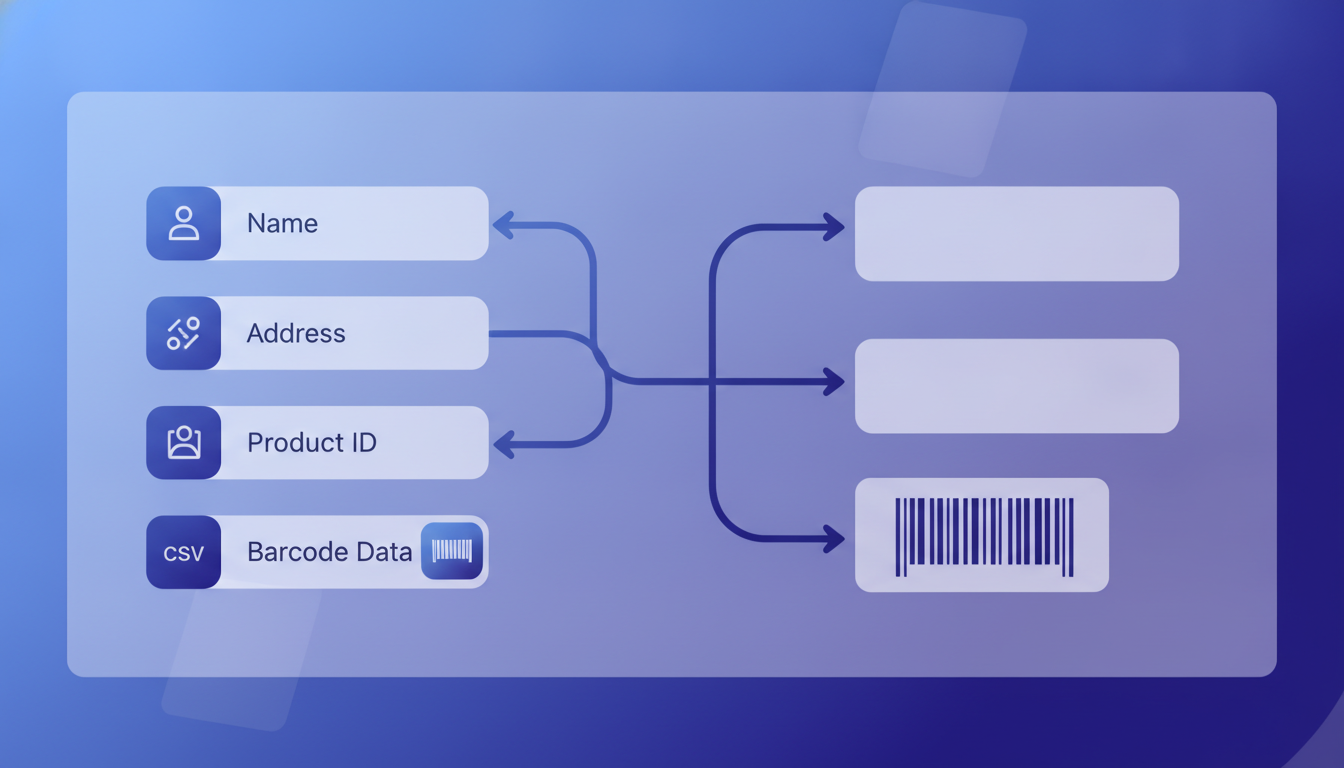
Connect a data source (optional for variable data). Upload a CSV file with column headers. Map each column to a field on the canvas. Label Toolkit generates a unique label per row. For 200 parcels, this takes seconds rather than typing each one.
Export or print. Choose Print to open the system dialog and select your DYMO printer, or choose Export PDF to download a true vector PDF. For the PDF path, set the page size to match your label dimensions in your PDF viewer before printing; Acrobat Reader's "actual size" option works well here.
Save the template. Label Toolkit saves your design to your account so you can reopen and re-merge next time without rebuilding it.
What about other DYMO alternatives?
Several tools compete in this space. Here is a brief, honest look:
Tool
Best for
Key limitation vs Label Toolkit
Avery Design and Print Online
Avery sheet labels, simple text
Avery sizes only, limited barcode options, no ZPL
Canva
Visually rich product labels
No barcode data merge, no thermal-print sizing, no ZPL
Microsoft Word mail merge
Address labels on Avery sheets
Complex setup, no barcode support, laser/inkjet only
ZebraDesigner Essentials
Zebra-printer labels with CSV merge
Windows desktop install, Zebra printers only
Label Toolkit
Any label, any printer, variable data, barcodes
No direct DYMO USB driver (prints via system dialog)
For a broader comparison of free label design tools, see the best free label makers tested in 2026, which covers eight tools head-to-head across barcodes, shipping, and spreadsheet merge.
DYMO users who also work with Zebra printers may want to review the label printing and hardware pillar, which covers printer selection, media types, and how to match the right tool to your workflow.
Printing exact-size labels without a cartridge driver
One of the more practical advantages of the PDF-based approach is dimensional accuracy. Label Toolkit exports a true vector PDF at the exact canvas dimensions. A 54 mm x 101 mm canvas produces a 54 mm x 101 mm PDF page. When you print at 100% scale (no scaling, no fit-to-page), the physical label matches the design pixel-for-pixel.
Contrast this with raster-based export tools, which render labels at a fixed DPI (often 203 dpi or 300 dpi) and can introduce rounding errors when the page size does not align neatly to a pixel grid. For barcodes this matters: a Code 128 bar that is even 0.1 mm narrower than spec can fail to scan on a tight scanner. The vector approach sidesteps that entirely because the bar widths are defined by geometry, not pixel counts, and the printer's RIP (raster image processor) renders them at whatever DPI the hardware supports. The GS1 barcode standards define minimum X-dimension (the narrowest bar) as 0.495 mm for a shipping Code 128, and a vector PDF preserves that exactly.
Data merge: the feature DYMO Connect is missing for most office workflows
The most common request on DYMO support forums is variable-data printing: how do I print 100 labels with different names and addresses from my spreadsheet? DYMO Connect has an address book import that works for a few dozen contacts, but it is not a true data merge. It does not handle barcodes with unique values per row, it does not support arbitrary columns, and it cannot pull from Google Sheets.
Label Toolkit handles this directly. You prepare a CSV with headers in row 1 (say: Name, Address, TrackingNumber), upload it inside the designer, and map each header to a field. The barcode field set to TrackingNumber generates a unique, scannable Code 128 for each row. Print or export all 100 labels as a single multi-page PDF in one click. The workflow is detailed in the guide on printing labels from Excel for thermal printers.
Frequently asked questions
Can I use Label Toolkit to print to my DYMO LabelWriter?
Yes. Label Toolkit prints through your browser's system print dialog, so your DYMO LabelWriter appears as a printer option just like any other device. You set the canvas size to match your label cartridge dimensions in Label Toolkit, then select the matching custom paper size in your DYMO driver preferences. After that one-time setup, printing works normally.
Does DYMO Connect work on Linux or Chromebook?
No. DYMO Connect is officially supported only on Windows and macOS. Linux and ChromeOS users have no official DYMO desktop app. Label Toolkit runs in any modern browser, including Chrome on a Chromebook, with no install required.
Can I merge addresses from a spreadsheet into a DYMO label?
Not in DYMO Connect itself, beyond its basic address book feature. With Label Toolkit, you upload a CSV or connect a Google Sheet, map columns to label fields, and print the entire batch as a single job, including a unique barcode per row if needed.
What DYMO label sizes does Label Toolkit support?
Label Toolkit supports any custom size you type in. Common DYMO sizes include the standard address label (28 x 89 mm), the large address label (36 x 89 mm), the shipping label (54 x 101 mm), and name badges (41 x 89 mm). Set the canvas to whatever your cartridge measures and the PDF output will match it exactly.
Is there a free alternative to DYMO label software that also exports ZPL?
Label Toolkit is free to start and exports ZPL alongside PDF. This is useful if you ever want to move a label design to a Zebra printer without redoing it from scratch. DYMO Connect has no ZPL export.
Ready to try a DYMO label software alternative that works in your browser, prints to any printer, and handles barcode data merge from a spreadsheet? Create a free Label Toolkit account and design your first label in under two minutes, no download needed.