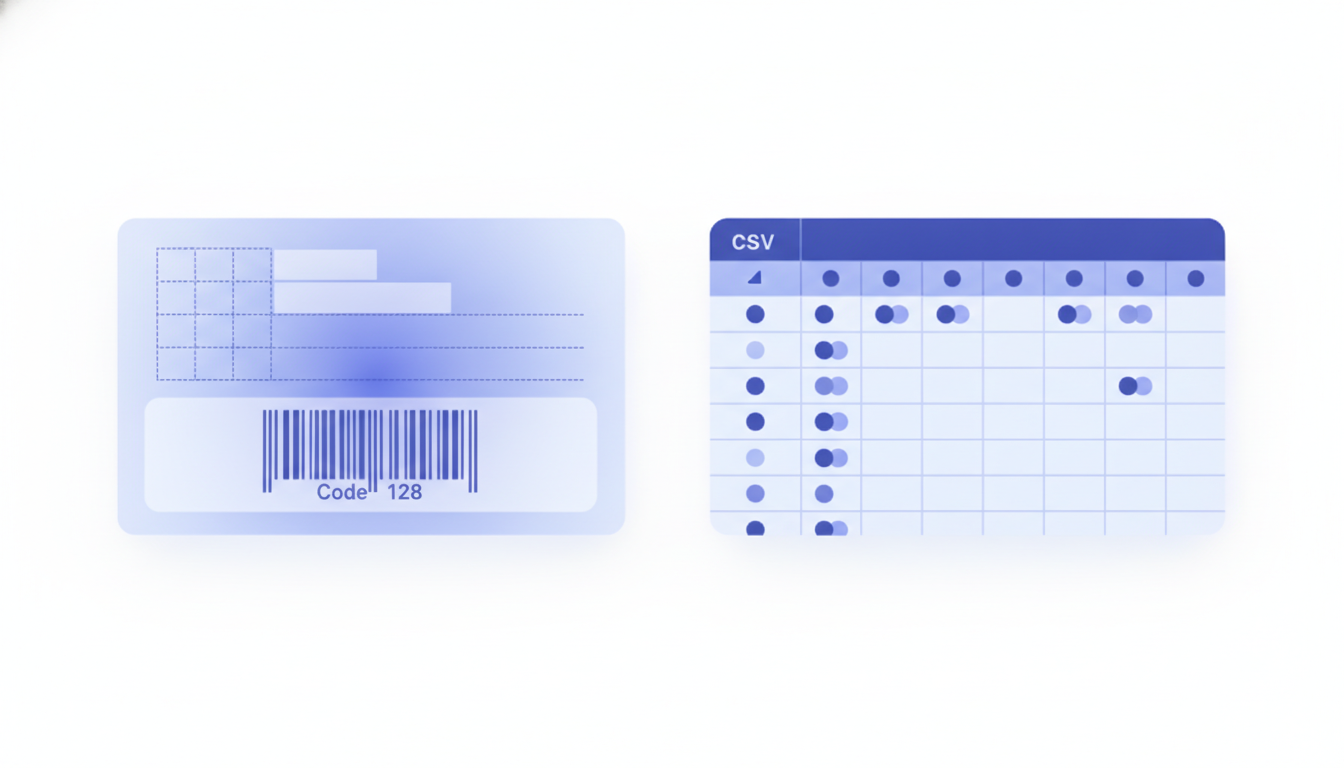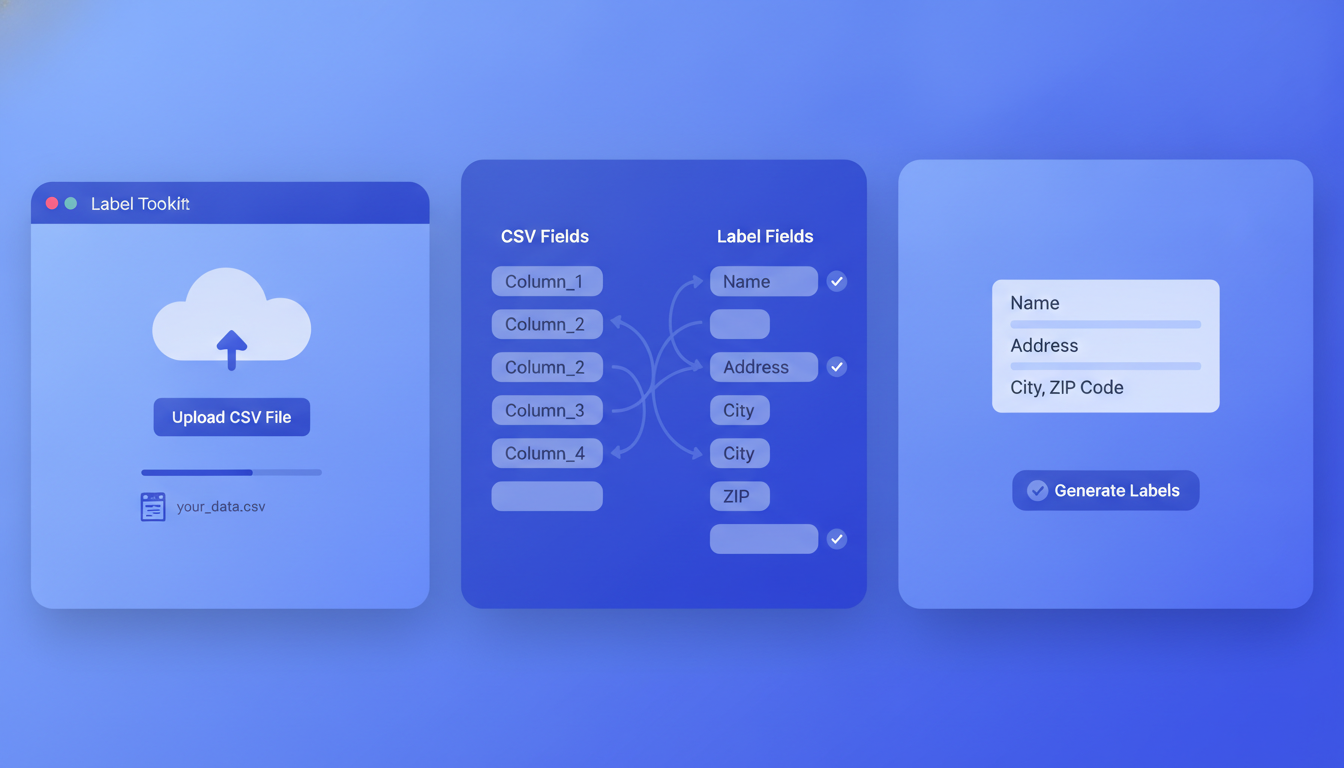
A BarTender label software alternative is any tool that covers the core label design tasks, barcode generation, variable-data merge, and thermal printer output, without BarTender's enterprise licensing cost or Windows-only install requirement. Label Toolkit is a free, browser-based designer that handles all three in a single tab: draw your label on a live canvas, attach a spreadsheet for data merge, and export production-ready ZPL for Zebra printers or a print-sharp vector PDF, no download required.
- Label Toolkit is free to start and runs entirely in the browser, so there is no per-seat license, no installer, and no IT ticket.
- It exports native ZPL (Zebra Programming Language) for direct Zebra printer output and vector PDF for desktop or service-bureau printing.
- Built-in data merge pulls variable fields from a CSV or spreadsheet, covering the primary SMB use case that most BarTender customers pay for.
- The honest trade-off: BarTender still leads for enterprise print-server management, SAP/ERP integration, and regulated-industry audit trails. Label Toolkit is the better fit when those requirements do not exist.
What is BarTender and who is it built for?
BarTender, made by Seagull Scientific, is Windows desktop label design and print management software. It has been in the market since 1994 and is genuinely well-regarded in regulated industries. The product ships in four editions, each adding capabilities at a higher price point.
| Edition | Rough annual price (2024) | Key capabilities | Who it targets |
|---|---|---|---|
| Starter | ~$327/yr (1 printer) | Basic design, single printer | Very small shops already on Windows |
| Professional | ~$495/yr (1 printer) | ODBC data sources, scripting | SMB with database connectivity needs |
| Automation | ~$1,395/yr (1 printer) | Print triggers, integrations, REST API | Mid-market, automated print workflows |
| Enterprise | Custom quote | Print servers, SAP/Oracle/ERP connectors, 21 CFR Part 11 | Pharma, food manufacturing, logistics enterprise |
Prices above reflect Seagull Scientific's published SRP and vary by region and reseller. The per-printer licensing model means costs scale quickly when you add print stations.
Where BarTender genuinely excels
It is worth being direct: BarTender earns its place in certain environments. If your operation matches any of the following, it is probably the right tool and no alternative should talk you out of it.
- Enterprise print servers. BarTender's print server architecture lets a central server manage dozens of Zebra, Honeywell, or SATO printers across a facility, with driver abstraction and queue management that browser tools cannot replicate.
- SAP, Oracle, and ERP triggers. The Automation and Enterprise editions accept XML or database triggers from SAP WM, SAP EWM, and Oracle, so a pick event automatically fires a label print. That closed-loop integration is a real competitive advantage.
- Regulated-industry audit trails. Pharma and medical-device manufacturers often need 21 CFR Part 11-compliant audit logs, electronic signatures, and version-locked templates. BarTender Enterprise supports all of that.
- Complex scripting. VBScript inside label templates can handle conditional logic, GS1 check-digit calculation, and multi-language switching that is genuinely complex to do elsewhere.
Where BarTender creates friction for smaller teams
Outside those enterprise scenarios, BarTender introduces overhead that most SMBs do not need to pay for.
- Cost at small scale. A three-printer Automation installation runs roughly $4,185 per year before support contracts. For a team printing product and shipping labels, that is a significant line item.
- Windows-only install. BarTender requires a Windows machine or server. Mac and Linux users are excluded, and remote or hybrid teams need a VPN or remote desktop just to access the designer.
- License tiers lock features. Data merge from Excel is a Professional feature; API-driven printing is Automation. Many users discover they need the next tier up after purchasing.
- Setup time. Installing BarTender, configuring printer drivers, and setting up a data source connection typically takes a full day for a first-time user. That is real friction when you need labels printed this afternoon.
- Template portability. BarTender templates use a proprietary .btw format. Moving to another tool later means rebuilding from scratch.
How Label Toolkit covers the core SMB use case
The majority of BarTender customers at the Starter and Professional tiers are doing three things: designing a label with a barcode, merging variable data from a spreadsheet, and printing to a Zebra thermal printer. Label Toolkit covers all three with no install and no license fee.
Label design on a live canvas
Open the designer at labeltoolkit.com/designer and you get a pixel-accurate canvas where you set exact label dimensions in millimetres or inches. You can place text, images, barcodes, QR codes, shapes, and GS1 fields by dragging or by entering precise coordinates. The canvas reflects your actual print size in real time, so a 4 x 6 inch (101.6 x 152.4 mm) shipping label looks exactly like it will print.
Barcode generation across major symbologies
Label Toolkit generates Code 128, Code 39, QR Code, Data Matrix, EAN-13, UPC-A, ITF-14, and GS1-128 barcodes inside the browser. Each barcode renders using the same module-width math a thermal printer uses, so quiet zones (the mandatory white margin around a barcode, typically 10x the narrowest bar width for Code 128) are calculated automatically. You can read more about symbology choices in the complete barcode types guide.
Data merge from a spreadsheet
Upload a CSV or paste data from Google Sheets or Excel, map columns to label fields, and Label Toolkit generates one label per row. Variable fields can include text, barcodes, QR codes, and sequential serial numbers. For step-by-step instructions, see how to print labels from Excel. This covers the same workflow that BarTender Professional charges approximately $495 per year per printer to enable.
ZPL export for Zebra printers
When your label is ready, export to ZPL (Zebra Programming Language II). The exported file contains standard commands: ^XA to open the label format, ^FO to position each field (for example ^FO50,30 places a field 50 dots right and 30 dots down from the origin), ^BC for a Code 128 barcode, ^FD to supply the field data, ^FS to close each field, and ^XZ to close the format. That ZPL sends directly to any Zebra printer over port 9100 or via USB without any additional driver software. For a deeper look at the label printing hardware that works with this output, the direct thermal vs thermal transfer guide covers media choices in detail.
A minimal ZPL label from Label Toolkit looks like this:
^XA
^FO50,50^A0N,30,30^FDProduct Name^FS
^FO50,100^BCN,80,Y,N,N^FD123456789012^FS
^XZ
That prints a text field at 50 x 50 dots and a Code 128 barcode at height 80 dots with a human-readable interpretation line below it. The ^A0N,30,30 selects the scalable CG Triumvirate font at 30 x 30 dots. At 203 DPI (dots per inch, the resolution of most entry-level Zebra printers), 80 dots equals approximately 10 mm bar height, which meets GS1 minimum scan requirements.
Vector PDF for non-Zebra printing
Not everyone prints to a Zebra. Label Toolkit also exports true vector PDF, meaning barcodes and text stay sharp at any print size without rasterisation artifacts. This is the right output for laser printers, desktop inkjet, or sending artwork to a print service bureau.