The ^BQ ZPL command tells a Zebra printer to render a QR Code barcode at a specific position on the label. In Label Toolkit's browser-based ZPL designer you can generate and preview ^BQ output instantly without installing any software or sending a test print. The command takes five parameters that control orientation, model, magnification, error correction, and a mask value, and it pairs with ^FD to supply the data.
- ^BQ is the sole ZPL II command for QR Code symbology and supports both Model 1 (legacy) and Model 2 (current standard, up to 4,296 alphanumeric characters).
- Error correction level H (30% recovery) is the right choice whenever a logo or overlay will cover part of the code; level L (7%) maximizes data density when the code will be protected.
- The magnification factor (parameter 3) is the easiest way to resize a QR code; each step equals one printer dot, so at 203 dpi a factor of 5 produces modules that are roughly 1.24 mm (0.049 in) wide.
- Label Toolkit can export finished labels as ZPL or vector PDF, so you can prototype the design in the browser and send exact ZPL to any Zebra device.
What is QR Code and why does it matter for ZPL labels?
QR Code (Quick Response Code) is a 2D matrix symbology invented by DENSO WAVE in 1994. Unlike 1D barcodes such as Code 128, a QR code stores data in both dimensions, which lets it hold URLs, serialized identifiers, GS1 Digital Link URIs, and plain text in a compact square that camera-based scanners and smartphones can read from any angle. For e-commerce, asset tracking, and product traceability labels, QR codes are often the preferred choice over linear barcodes because they survive partial damage (thanks to Reed-Solomon error correction) and can encode enough characters for a full HTTPS URL.
The ISO/IEC 18004 standard governs QR Code symbol structure, version sizing, and error correction.
Source: ISO/IEC 18004:2015 on iso.org
DENSO WAVE, the original inventor, maintains authoritative documentation on QR Code specifications.
Source: QR Code.com by DENSO WAVE
Full ^BQ syntax
The command signature, taken directly from the Zebra ZPL Programming Guide, is:
^BQa,b,c,d,e| Parameter | Name | Valid values | Default | What it does |
|---|---|---|---|---|
| a | Orientation | N, R, I, B | N | Normal, Rotated 90°, Inverted 180°, or B (rotated 270°). QR Code is rotationally symmetric, so orientation matters for label layout, not scanability. |
| b | Model | 1, 2 | 2 | Model 1 is a legacy format; Model 2 is the current standard with Enhanced ECC and is universally supported. Always use 2 unless you have a very old scanner requirement. |
| c | Magnification factor | 1 to 10 | 1 | Multiplies the module (dot) size in printer dots. At 203 dpi (8 dpmm), factor 3 = 3 dots = 0.375 mm per module; factor 6 = 6 dots = 0.75 mm per module. |
| d | Error correction / data input mode | Q, M, H, L (append A for automatic mode) | Q | Sets Reed-Solomon error correction level: L = 7%, M = 15%, Q = 25%, H = 30% data restoration capacity. The letter A appended (e.g. QA, HA) tells the printer to determine the encoding mode automatically. |
| e | Mask value | 0 to 7, or empty | auto | Controls the data-masking pattern. Leaving this blank lets the printer choose the optimal mask per the QR Code specification; only set manually for very specific compliance scenarios. |
How to pair ^BQ with ^FD: data format rules
The ^BQ command defines the symbol style; the actual content comes from ^FD (Field Data). QR Code ^FD strings follow a specific prefix convention that the printer uses to determine encoding mode:
| Prefix in ^FD string | Encoding mode | Character set | Max capacity (Model 2, L) |
|---|---|---|---|
No prefix (or A mode flag in parameter d) | Auto | Printer decides based on data | Up to 7,089 numeric or 4,296 alphanumeric |
M | Manual | Byte/binary (kanji with modifier) | 2,953 bytes |
In practice, most e-commerce and asset-tracking labels use automatic mode. Set parameter d to QA or HA (error correction level + A for auto), and the printer handles encoding selection.
Step-by-step: printing a QR code with ^BQ
- Open a label format with ^XA and set label dimensions using ^PW (print width) if needed.
- Position the field using ^FO. For example,
^FO50,50places the top-left corner of the QR code 50 dots right and 50 dots down from the label home position. - Call ^BQ with your chosen parameters. A good starting point for most 4-inch labels at 203 dpi is
^BQN,2,5,QA: normal orientation, Model 2, magnification 5 (5 dots per module = 0.625 mm), Q-level error correction, auto mode. - Add field data with ^FD. The string must end with ^FS to close the field.
- Close the label with ^XZ to trigger printing.
Copy-paste ZPL examples
Example 1: URL QR code on a 4 x 2 inch shipping label (203 dpi)
^XA
^PW812
^LL406
^FO30,30
^BQN,2,5,QA
^FDQA,https://labeltoolkit.com^FS
^XZ
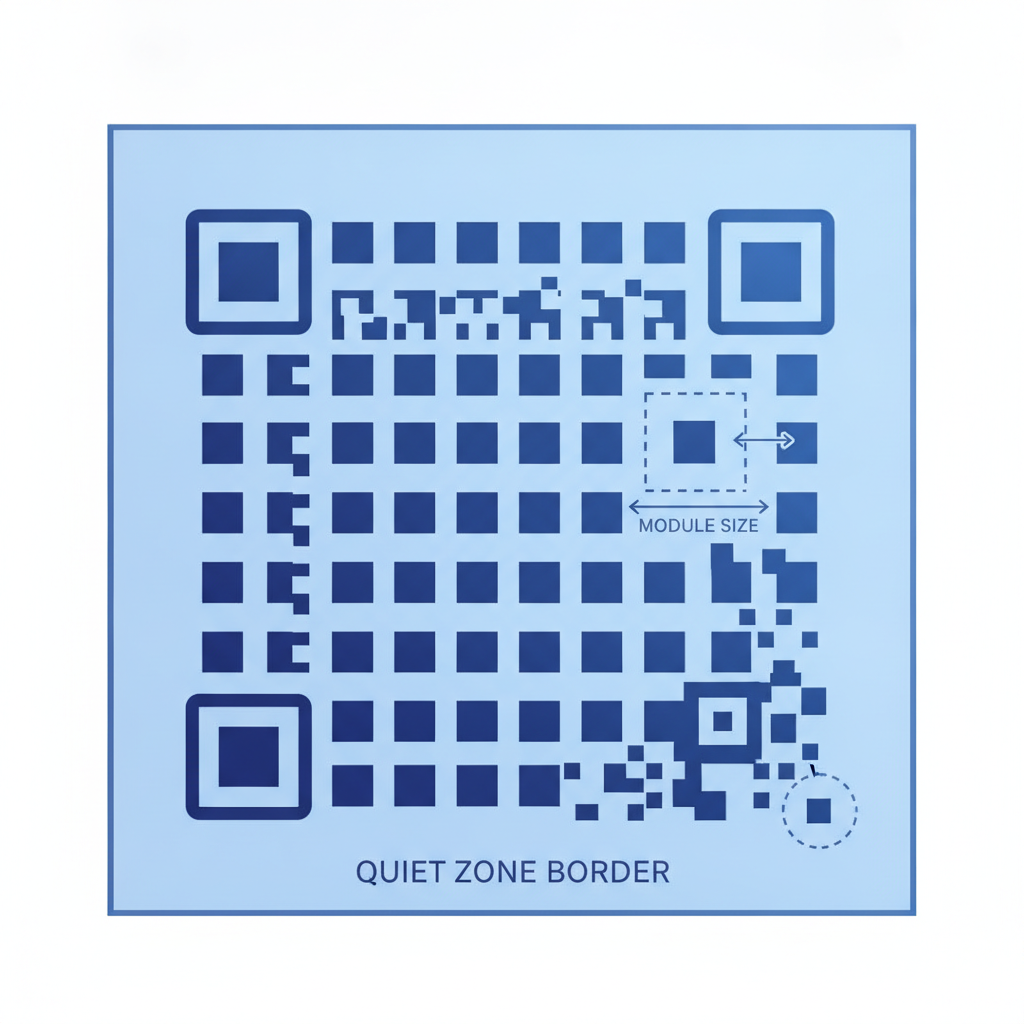
What this produces: a QR code whose modules are 5 printer dots wide (5 / 203 in = 0.0246 in = 0.625 mm). At Q-level error correction and a short URL, the symbol will be approximately Version 4 (33x33 modules), making the printed square about 20 mm (0.79 in) on each side including the 4-module quiet zone. The quiet zone (the mandatory blank border around a QR code) must be at least 4 modules wide on all sides per ISO/IEC 18004; at magnification 5 on a 203 dpi printer that equals 20 dots (2.5 mm), so position your ^FO accordingly.
Example 2: Asset tag with H-level error correction (300 dpi printer)
^XA
^PW1200
^LL600
^FO40,40
^BQN,2,4,HA
^FDHA,ASSET-2025-00142^FS
^CF0,28
^FO40,420
^FDHASSET-2025-00142^FS
^XZ
Here magnification 4 at 300 dpi (11.8 dpmm) gives modules that are 4/300 in = 0.34 mm wide. H-level error correction means up to 30% of the symbol can be obscured or damaged and scanners will still recover the data, which is ideal for metal asset tags that may get scratched. The human-readable text is printed beneath using ^CF (font) and a second ^FD / ^FS pair.
Example 3: GS1 Digital Link URI (e-commerce / product traceability)
^XA
^PW812
^LL406
^FO30,30
^BQN,2,6,MA
^FDMA,https://id.gs1.org/01/09521234543213^FS
^XZ
GS1 Digital Link encodes a GTIN inside a standard HTTPS URL so both legacy barcode scanners and smartphone cameras resolve product information. Magnification 6 at 203 dpi produces 0.75 mm modules, comfortably readable by most fixed-mount and handheld scanners.
Choosing the right magnification for your printer resolution
Magnification is the most common source of QR code scan failures. If modules are too small relative to the scanner's optical resolution, the code will fail. As a practical rule, each module should be at least 2 dots wide (and ideally 3 or more for reliable omnidirectional scanning).