An Amazon FBA FNSKU label is a barcode sticker that Amazon requires on every unit entering a fulfillment center. The FNSKU (Fulfillment Network Stock Keeping Unit) is a 10-character alphanumeric code, encoded as a Code 128 barcode, that ties your specific product to your seller account. Label Toolkit lets you design, merge, and print FNSKU labels free in your browser, with no software to install.
Each unit must carry one FNSKU label that covers or replaces any existing retail barcode.
Amazon specifies a minimum label size of 1 x 2 inches (25.4 x 50.8 mm) and a Code 128 barcode at least 0.75 inches (19 mm) tall.
Label Toolkit can generate one label or thousands from a spreadsheet, then export to PDF or ZPL for a thermal printer.
Generating FNSKU labels is free: no subscription, no watermark, no install.
What Is an FNSKU and Why Does Amazon Require It?
When you enroll a product in FBA, Amazon assigns it a unique FNSKU. The format is always one letter followed by nine alphanumeric characters, for example X001AB2CD3. This code tells Amazon's warehouse systems exactly which seller owns which unit, enabling commingled or stickered inventory tracking.
Without an FNSKU label, Amazon may refuse your shipment or charge a labeling service fee (currently $0.55 per unit in most categories, per the Amazon Seller Central labeling requirements page). Applying your own labels is almost always cheaper and gives you full control over print quality.
Amazon FNSKU Label Specifications
Physical dimensions
Amazon does not publish a single rigid template, but the widely accepted minimum that passes fulfillment center scanners is:
Attribute
Minimum
Recommended
Label width
2 in (50.8 mm)
2 in (50.8 mm)
Label height
1 in (25.4 mm)
1.25 in (31.75 mm)
Barcode height
0.75 in (19 mm)
0.875 in (22.2 mm)
Quiet zone each side
0.1 in (2.54 mm)
0.125 in (3.18 mm)
Human-readable text
Required below barcode
8 pt minimum
The quiet zone is the blank white space on either side of a barcode that lets scanners detect the start and end of a symbol. Skimping on quiet zone width is one of the most common reasons FNSKU barcodes fail to scan. Our guide on what is a quiet zone and the barcode margin rule explains exactly how much space each symbology needs.
Barcode symbology
FNSKU barcodes use Code 128, a high-density linear (1D) symbology that encodes the full ASCII character set. Amazon's warehouse scanners are optimized for Code 128, and no other symbology is accepted for FNSKU labels. The Code 128 barcode format guide covers the full character set and encoding rules if you need a deeper reference.
Print resolution
For thermal printers, 203 DPI (8 dots per mm) produces acceptable results at the recommended label size. 300 DPI (11.8 dpmm) gives noticeably sharper bars and is worth using if your printer supports it, especially for units that may be handled or shipped multiple times before reaching a fulfillment center. Inkjet and laser printers work too, as long as the label stock is white, matte, and non-reflective.
Required label content
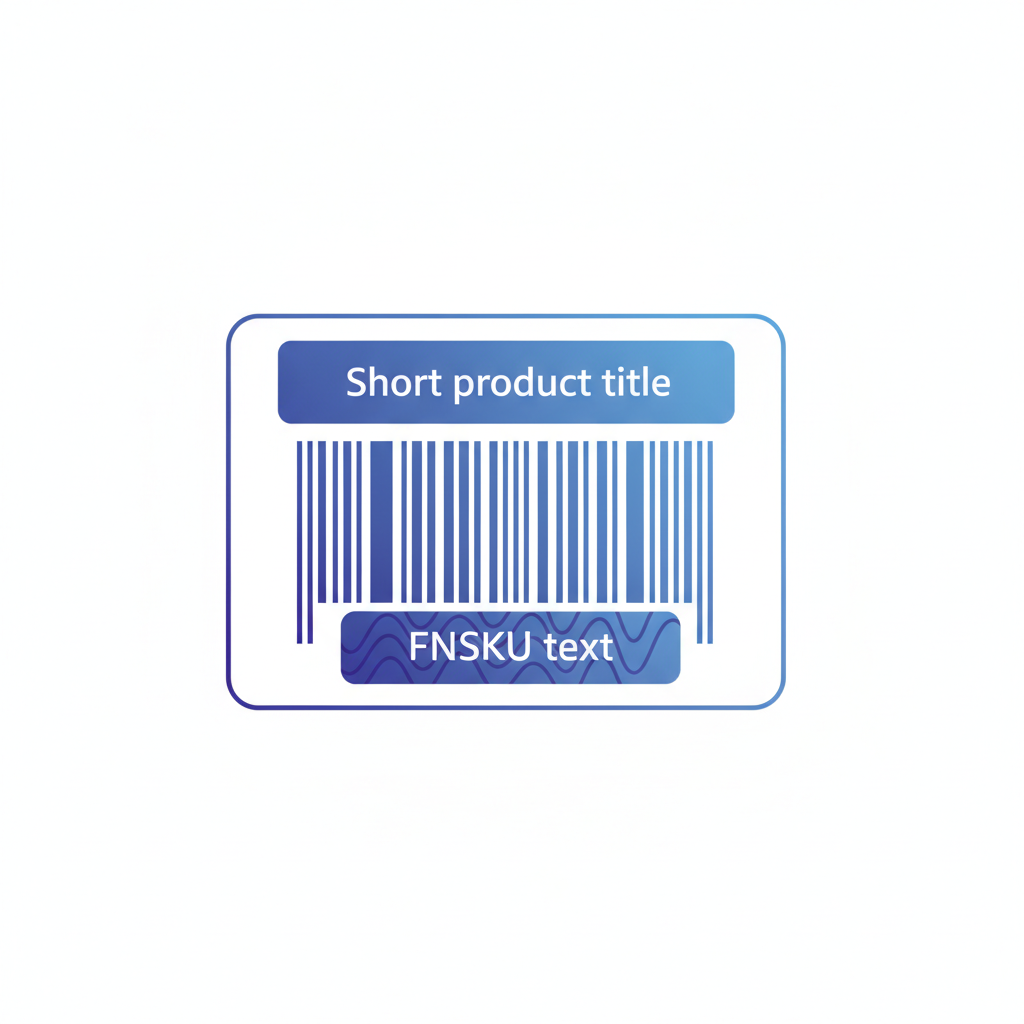
Code 128 barcode encoding the FNSKU string (for example X001AB2CD3)
Human-readable FNSKU text directly below the barcode
Product title or short description (recommended, not mandatory)
White or light-colored background only: no patterns, no glossy finish that causes scanner glare
How to Generate FNSKU Labels Free in Label Toolkit
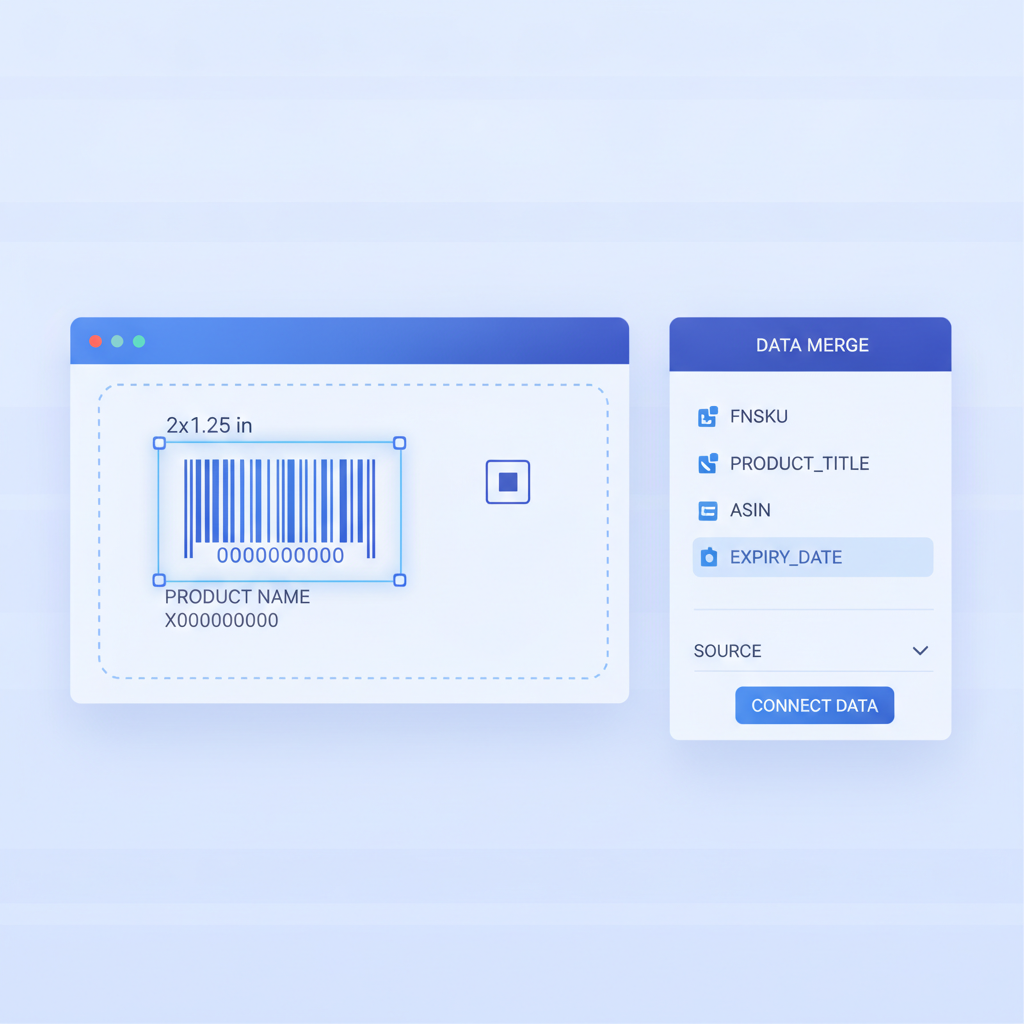
Label Toolkit runs entirely in the browser. You design the template once, then merge a spreadsheet column of FNSKU codes to produce one label per row. Here is the full workflow:
Open the designer. Go to Label Toolkit designer and create a new label. Set the canvas to 2 in wide by 1.25 in tall (or your chosen size).
Add a barcode element. Select the barcode tool, choose Code 128 as the symbology, and place it on the canvas. Set the barcode height to at least 0.75 in and confirm the quiet zone padding is at least 0.1 in on each side.
Bind the barcode to a data column. In the barcode field, type a merge variable that matches your spreadsheet header, for example {{FNSKU}}. The designer will substitute the real value from each row during merge.
Add a text element for the product title. Place a text field above the barcode and bind it to a column like {{ProductName}}. Use a minimum 8 pt font size.
Add a second text element for the human-readable FNSKU. Place this below the barcode and bind it to {{FNSKU}} again. This is the text a warehouse associate reads if the scanner fails.
Import your spreadsheet. Click Data Merge and upload your CSV or Excel file. The columns FNSKU and ProductName (or whatever headers you used) map automatically to the merge variables.
Preview and export. Use the merge preview to check each label. When satisfied, export to PDF for inkjet or laser printing, or export to ZPL for a Zebra thermal printer. Label Toolkit generates one page or one ZPL label per row.
The data merge step is the same approach used for serial number labels, warehouse bins, and retail price tags. Our complete guide to data merge workflows covers the full range of variable-data label scenarios, including auto-incrementing serial numbers and conditional fields.
Preparing Your FNSKU Spreadsheet
Your CSV needs at minimum two columns: one for the FNSKU code and one for a product identifier. A practical three-column sheet looks like this:
FNSKU
ProductName
Condition
X001AB2CD3
Blue Widget 12-Pack
New
X001EF5GH7
Red Widget Single
New
X001KL8MN2
Green Widget Bundle
New
Each row produces one label. If you need to print 40 labels for the same FNSKU (one per unit in a case pack), simply repeat that row 40 times, or use the quantity-repeat feature in Label Toolkit to print N copies of a single merged record without duplicating rows in the spreadsheet.
Export your spreadsheet as CSV (UTF-8). FNSKU codes are ASCII-only, so encoding is never an issue, but product titles can contain accents or other characters if you sell internationally, and UTF-8 handles those cleanly.
Printing FNSKU Labels on a Thermal Printer
Direct thermal label stock is the right choice for FBA labels. It produces black bars on white background with no ink or ribbon to run out. A 2.25 x 1.25 inch (57 x 32 mm) or 2 x 1 inch (51 x 25 mm) direct thermal roll fits most Zebra, Rollo, or Dymo printers. Our article on direct thermal vs thermal transfer explains when you might prefer one over the other.
For Zebra printers, Label Toolkit exports ZPL directly. A minimal FNSKU label in ZPL looks like this:
Breaking that down: ^XA opens the label format. ^FO30,20 sets the field origin at 30 dots from the left edge and 20 dots from the top. ^BCN,80,Y,N,N calls the Code 128 barcode command with normal orientation, 80-dot height (0.39 in at 203 DPI), human-readable text below, and no check digit printed separately. ^FD supplies the data, and ^FS closes the field. ^ADN,18,10 selects the scalable font at 18 x 10 dot size for the product name text. ^XZ closes the format.
Label Toolkit generates this ZPL for you automatically when you export, so you do not need to write it by hand. But understanding the commands helps when you need to tweak positioning on an existing Zebra template.
Placement and Application Rules
Amazon requires the FNSKU label to cover any existing retail barcode on the unit. The label must be flat, not wrinkled, and must adhere firmly. Key placement rules:
Apply to a flat, smooth surface where possible. Curved bottles or round containers need a label stock with a strong adhesive rated for curved surfaces.
Do not cover expiration dates, lot numbers, or safety warnings.
Do not place on the bottom of the unit if it will be stored flat on that surface.
For polybag-wrapped items, apply the label to the outside of the poly bag, not the product inside.
Labels must be scannable from at least 10 inches (25 cm) under normal fluorescent warehouse lighting.
Common FNSKU Label Mistakes and How to Avoid Them
Mistake
Why It Fails
Fix
Barcode too short (under 0.75 in)
Handheld scanners miss short barcodes at an angle
Set barcode height to at least 0.875 in
Glossy label stock
Glare causes scanner misread
Use matte white thermal stock
Missing quiet zone
Adjacent artwork or text bleeds into barcode start/stop patterns
Keep 0.1 in minimum clear space each side
Wrong symbology (QR or EAN instead of Code 128)
Amazon FC scanners optimized for Code 128 linear
Always select Code 128 in the designer
FNSKU and ASIN mixed up
ASIN is a product catalog ID; FNSKU links to your account
Download the FNSKU from Seller Central Manage Inventory, not the product detail page
Low print density on thermal
Faint bars scan inconsistently
Increase darkness setting (ZPL: use ^MD command, for example ^MD15)
Where to Find Your FNSKU Codes in Seller Central
Amazon generates an FNSKU for each SKU when you create an FBA inbound shipment plan or when you opt a product into FBA labeling. To retrieve them in bulk:
In Seller Central, go to Inventory then Manage All Inventory.
Filter by Fulfilled by Amazon.
Click Action on selected then Print Item Labels to see individual FNSKUs, or use the Inventory Reports section and download the FBA Inventory report as a flat file (tab-delimited text, which opens in Excel or Google Sheets).
The column labeled fnsku in the flat file contains the codes you need.
Copy that column and your product name column into a new CSV, then import into Label Toolkit for merging.
Amazon's own documentation on FNSKU label requirements is maintained in the Seller Central Help: FBA Label Requirements. Cross-reference that page whenever Amazon updates its policies, since specifications can change with little notice.
Scaling Up: Bulk FNSKU Labels from a Spreadsheet
Most FBA sellers eventually manage dozens or hundreds of SKUs. Generating labels one at a time is not practical. The data merge approach in Label Toolkit scales linearly: a 500-row CSV produces 500 unique FNSKU labels in a single export run, ready to print as a multi-page PDF or a ZPL file that streams directly to a Zebra printer.
For sellers who restock frequently, save the label template in your Label Toolkit account. The next time you receive a new FNSKU report from Amazon, you just upload the fresh CSV and re-run the merge. No redesign needed. The auto-numbering and conditional fields guide shows how to add lot codes, expiration dates, or condition notes as conditional fields that only appear when the column contains a value, keeping your template flexible across product types.
Frequently Asked Questions
What barcode type does Amazon use for FNSKU labels?
Amazon FNSKU labels use Code 128, a linear (1D) barcode symbology. The FNSKU string is encoded directly as a Code 128 symbol with human-readable text printed below. No other symbology is accepted for FBA unit labeling.
Can I print FNSKU labels on a regular inkjet or laser printer?
Yes, as long as you use white matte label stock and print at 300 DPI or higher. Thermal printers are faster for large batches and produce sharper bars without ink smearing, but inkjet and laser prints are perfectly acceptable to Amazon if the barcode scans cleanly.
What is the difference between an FNSKU and an ASIN?
An ASIN (Amazon Standard Identification Number) is a catalog identifier for a product listing and is shared across all sellers. An FNSKU is seller-specific: it links a physical unit to your account within Amazon's fulfillment network. You barcode the FNSKU, not the ASIN, on FBA labels.
How many labels do I need per unit?
One label per sellable unit. If you sell a bundle of three items packaged together as one SKU, that bundle gets one FNSKU label. Each individual item in a multi-pack does not need its own label, only the outer sellable package does.
Do FNSKU labels expire or need to be reprinted?
The FNSKU itself does not expire, so a label printed today is valid indefinitely for that SKU as long as the product condition and listing details have not changed. If Amazon reassigns or changes a product's FNSKU (rare, but possible during account merges or listing corrections), you need to reprint the affected labels.
Ready to generate your FNSKU labels? Create a free Label Toolkit account and start designing your first FBA label template in minutes, no install, no subscription required.